Documentation Index
Fetch the complete documentation index at: https://docs.chemolytic.com/llms.txt
Use this file to discover all available pages before exploring further.
A trial is a single trained model. Click any trial row in the leaderboard to open its detail modal.
Tabs in the trial modal
| Tab | Contents |
|---|
| Results | Pipeline, metrics, charts |
| Details | Trial number, duration, exact hyperparameters used |
The Results tab
Pipeline section
Visual representation of what was trained:
[ SNV ] → [ SG D1 (w=21, p=2) ] → [ Mean Center ] → [ PLS (n=8) ]
Each preprocessing step is shown in a grey box, the model in a flame box. The arrows indicate execution order.
The metric grid below the pipeline switches between two evaluations:
| Toggle | What it computes |
|---|
| CV | Average across cross-validation folds. Best estimate of how the model generalizes. |
| Test | Performance on a held-out test set never used in training. Confirms the CV result wasn’t overfitting. |
Always check both. If CV looks great but Test is much worse, the model overfit. If both are similar, the model is solid.
Regression metric grid
| Metric | Range | Better |
|---|
| R² | -∞ to 1.0 | Higher (closer to 1.0 = better fit) |
| RMSE | 0 to ∞ | Lower (in target units, e.g., °Bx) |
| MAE | 0 to ∞ | Lower (in target units) |
| Bias | -∞ to ∞ | Closer to 0 (systematic error) |
| RPD | 0 to ∞ | Higher (above 2 is useful, above 3 is strong) |
Classification metric grid
| Metric | Range | Better |
|---|
| Accuracy | 0 to 1.0 | Higher (fraction of correct predictions) |
| F1 (macro) | 0 to 1.0 | Higher (treats all classes equally) |
| F1 (weighted) | 0 to 1.0 | Higher (weighted by class size) |
| Precision | 0 to 1.0 | Higher (of predicted positives, fraction correct) |
| Recall | 0 to 1.0 | Higher (of actual positives, fraction caught) |
Predicted vs Actual (regression)
Scatter plot with one point per sample.
- The diagonal line is the ideal: predicted value equals actual value
- Points close to the line = good predictions
- Points far from the line = errors
- A wide cloud = high noise; a tight diagonal cloud = strong model
Look for systematic patterns. If predictions are consistently low at high actual values, the model has a calibration issue at the high end. Add more samples in that range or try different preprocessing.
Confusion matrix (classification)
Table where rows are actual classes and columns are predicted classes. Cell colour indicates count (darker = more predictions).
| Pattern | Meaning |
|---|
| Diagonal dominant | Model is correct most of the time |
| Off-diagonal in one column | Model over-predicts that class |
| Off-diagonal in one row | Model misses that class often |
The Details tab
Shows the exact configuration used:
- Trial # and Duration (training time in seconds)
- Model parameters with each hyperparameter value
- Preprocessing parameters for any step that has them
Use this to reproduce the trial in Scientist mode if you want to iterate on it.
Comparing trials in the leaderboard
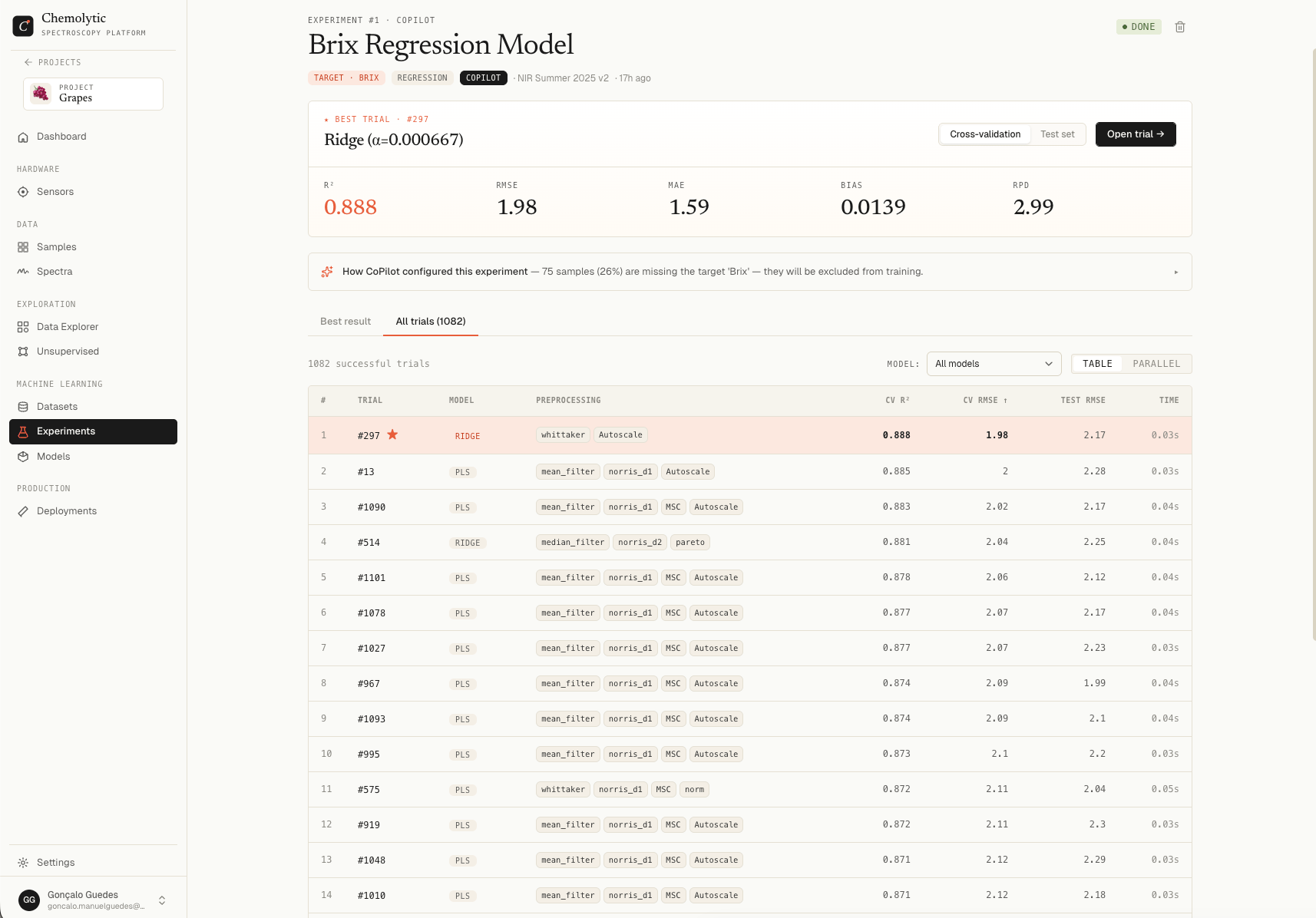
Before drilling into one trial, you usually want to compare many. The All trials tab on the experiment detail page shows every trial across every job, with two view modes.
Table view
A standard sortable table with one row per trial.
| Column | Description |
|---|
| # | Trial number |
| Model | Algorithm (PLS, Ridge, RF, etc.) |
| Preprocessing | Each step in order, shown as small boxes |
| Model params | Visible numeric hyperparameters (e.g., n_components, alpha) |
| Secondary CV | Secondary CV metric (e.g., R² for regression) |
| Primary CV | Primary CV metric used to pick the best (RMSE for regression, F1 macro for classification) |
| Test | Held-out test set metric |
| Time | Training duration in seconds |
The best trial is highlighted with a flame-coloured row and a star (★).
Click any column header to sort. Click a row to open the trial detail modal.
Filters and pagination
- Model filter: dropdown to limit the table to one model family (e.g., only PLS trials). Useful when you have hundreds of trials across many models.
- Page size: 25, 50, 100, or 250 per page.
- Counter: shows “X-Y of Z” with a “(filtered)” suffix when the model filter is active.
Parallel coordinates view
Toggle from Table to Parallel at the top right.
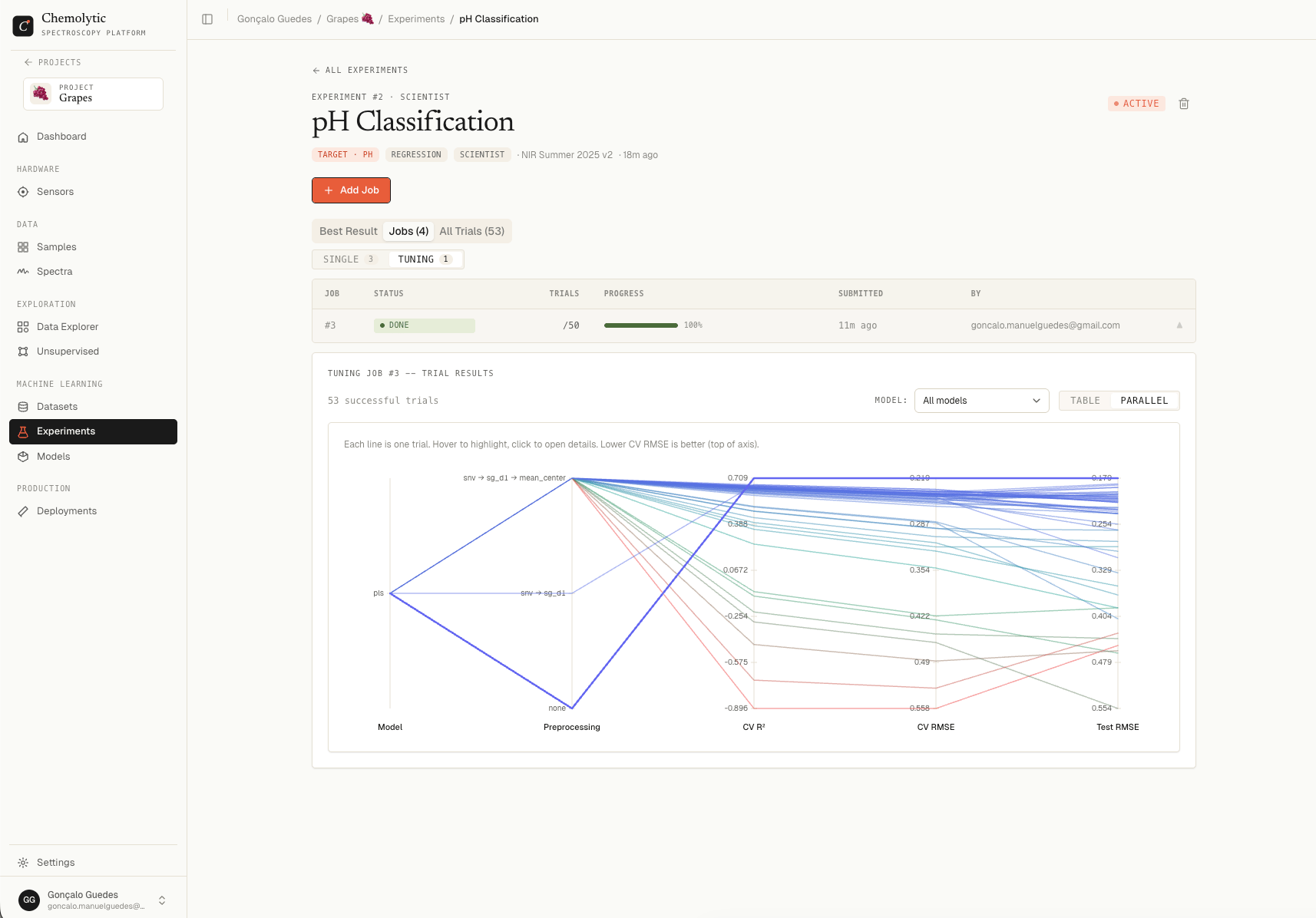
In parallel coordinates:
- Each line is one trial
- Each vertical axis is one parameter or metric (model family, preprocessing choice, hyperparameter values, CV metrics, test metrics)
- Lines move from left to right, connecting that trial’s value on each axis
- Better metrics are oriented so “down” is always good (or “up”, labelled at the top of each axis)
What this view is good for
| Goal | How parallel coordinates helps |
|---|
| Spot which preprocessing dominates the top trials | Bands of lines clustering at the same preprocessing values |
| Find correlations between hyperparameters and metrics | Lines bending the same way across two axes |
| Identify trial outliers (great metric, weird config) | A single line that goes far from the main cluster |
| See if a model family is consistently better | Lines starting at the same model that all reach a good metric |
Interaction
- Hover any line to highlight it; other lines fade
- Click a line to open the trial detail modal
- The legend at the top of each axis tells you whether higher or lower is better
Switch to parallel coordinates after a tuning job with 50+ trials. You’ll see at a glance whether the search converged on a region of the parameter space, or whether top trials are scattered (suggesting more search is needed or the problem is hard).
Per-job leaderboards (Scientist mode)
Inside the Jobs tab, clicking an expanded tuning job row reveals the leaderboard for just that job’s trials. Same table and parallel views, scoped to a single job. Useful when you’ve run multiple tuning jobs with different parameter spaces and want to evaluate them independently.
Registering a model
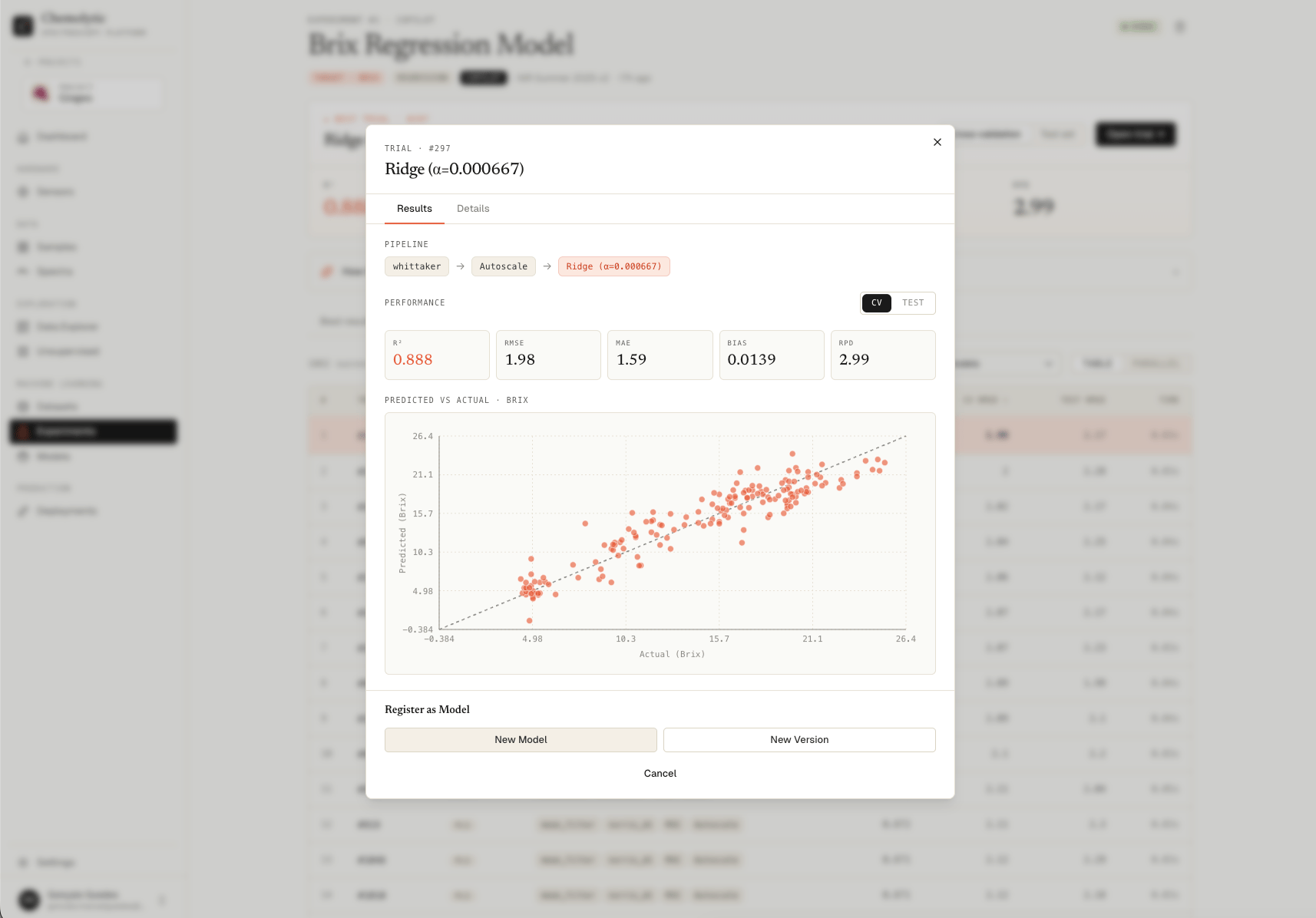
Click Register Model at the bottom of the modal. A footer panel opens.
New model vs new version
You’re given two options:
| Option | When to use |
|---|
| New Model | First time registering a model for this prediction problem |
| New Version | You already have a model and want to add a new version trained on more data or with better hyperparameters |
New model
| Field | Required | Notes |
|---|
| Model name | Yes | Defaults to the experiment name; you can change it |
| Description | No | Free-text |
Click Register. The trial is refit on the full training set (no CV split) and saved as v1 of the new model.
New version
| Field | Required | Notes |
|---|
| Existing model | Yes | Pick from a dropdown of registered models in the project |
| What changed? | No | Free-text. Use it to record why this version is better |
A confirmation step appears: “This will create a new version of '' using trial #. The model will be refit on the full training set.”
Click Create Version. The trial is refit on the full training data and saved as the next version (v2, v3, …).
What happens after registration
The trial is permanently saved as a registered model. From there you can:
- View it in the Models page
- Deploy it for live predictions
- Compare versions across the model’s history
The original trial in the experiment remains unchanged. Registration is a one-way action: it copies the trial’s pipeline and refits on the full data, leaving the experiment intact.
Tips for choosing a trial
Don’t always pick the best CV metric. A trial with slightly worse metrics but a simpler pipeline (fewer preprocessing steps, fewer components) often generalizes better in production.
Test set agreement matters. A trial where CV and Test metrics are very close is more trustworthy than one where Test is dramatically worse than CV.
Look at the residual pattern, not just the number. Two trials with the same RMSE can produce very different prediction behaviours. Always check the predicted vs actual chart.