

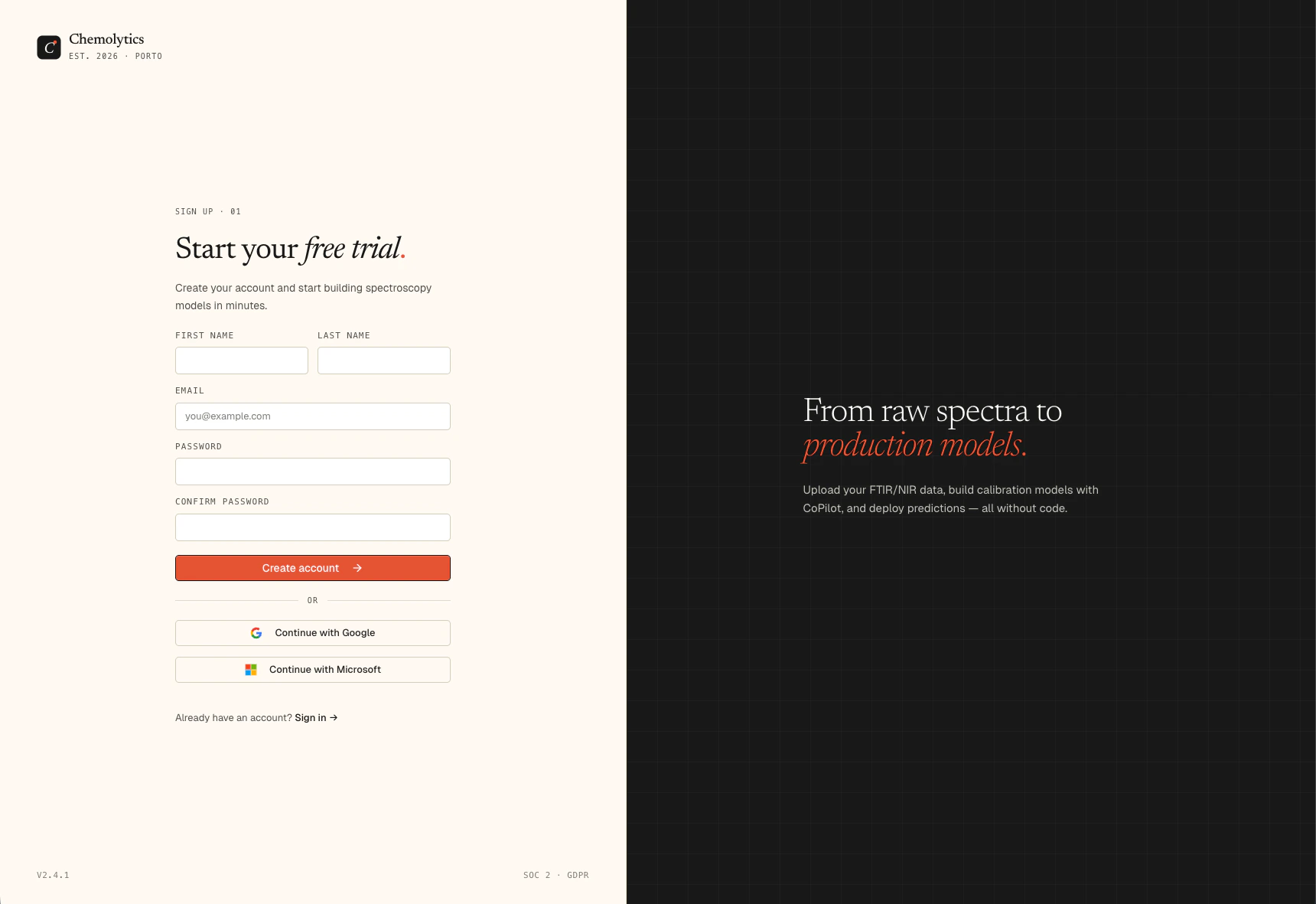
Step 1: Create an account
- Go to the Chemolytic app and click Sign Up
- Enter your email and create a password
- Check your inbox and click the verification link
- You’ll be automatically logged in and a personal organization will be created for you
Step 2: Create a project
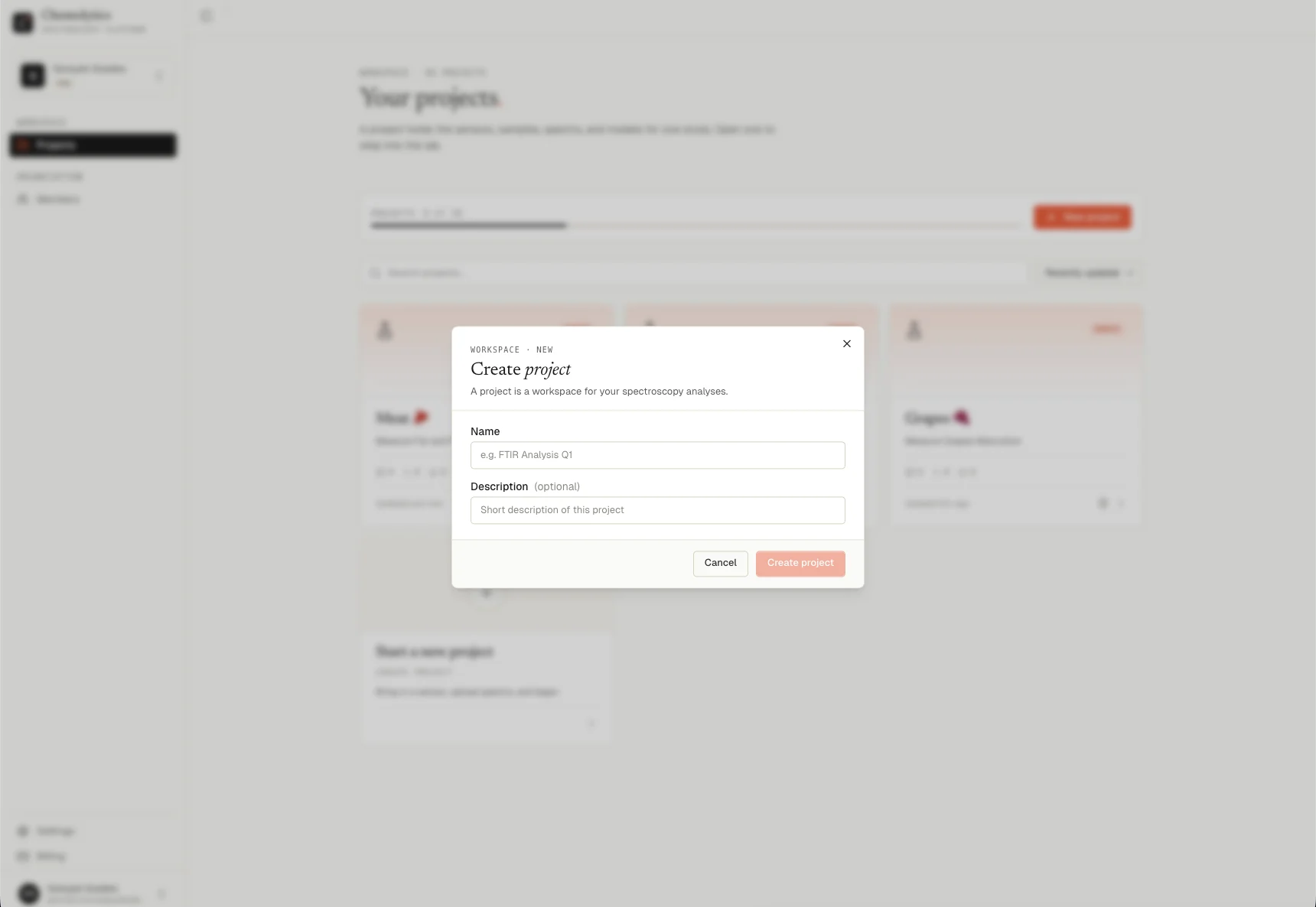
- After logging in, you’ll see the Projects page
- Click New Project
- Give it a name (e.g., “Olive Oil Quality”) and an optional description
- Click Create
Step 3: Set up a sensor
Your spectra come from a physical instrument. You need to tell Chemolytic which one.- In your project, go to Sensors in the sidebar
- Click New Sensor
- Choose from the catalog (e.g., select “NIR”) or create a custom sensor
- Fill in the details and click Create
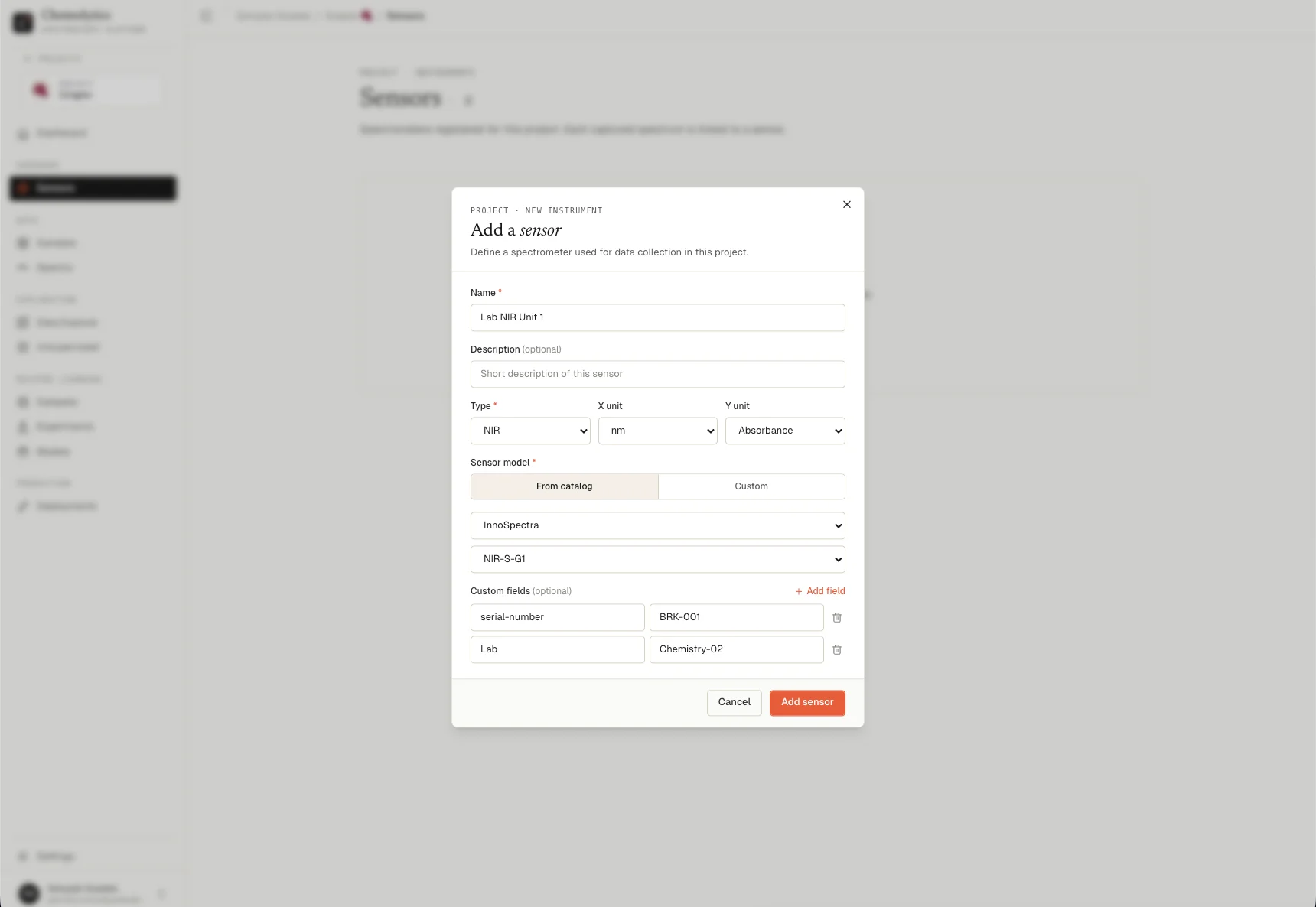
If you select an instrument from the catalog, most fields will be filled automatically. If your instrument is not listed, choose Custom and enter the specifications manually.For catalog instruments, sensor configurations are predefined and raw data can be imported automatically. For custom instruments, the data must be converted into a standard format before it can be processed.
Step 4: Create samples and properties
Samples are the physical items you measured (e.g., “Olive Oil Sample #1”). Properties are what you want to predict (e.g., “Acidity”).Create a property first
- Go to Samples in the sidebar
- Click the Properties tab
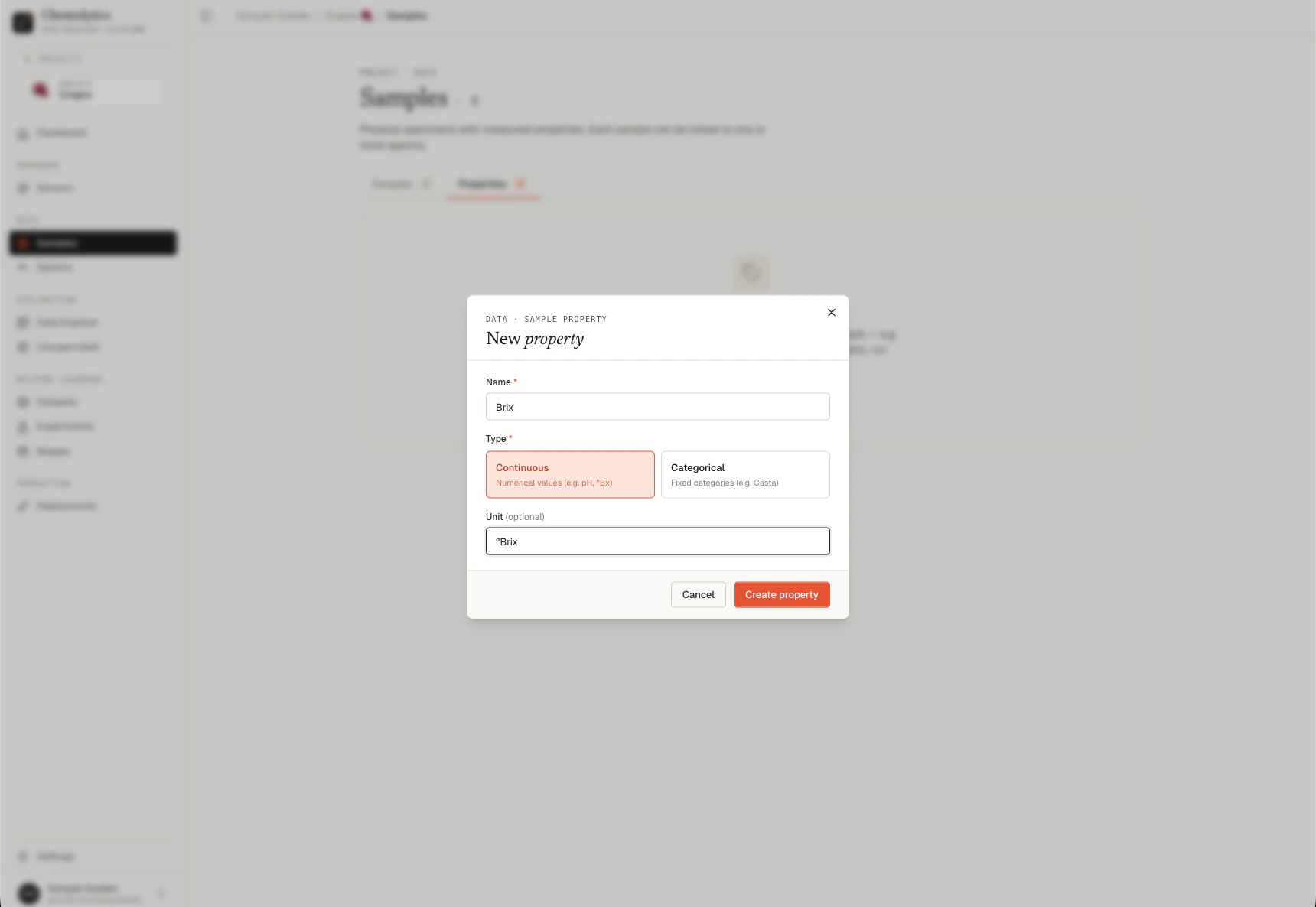
- Click New Property
-
Enter a name (e.g., “Acidity”), select a type, and optionally add a unit (e.g., ”% w/w”)
- Choose Continuous for numeric values
- Choose Categorical for discrete labels (you must define at least two categories)
Create samples
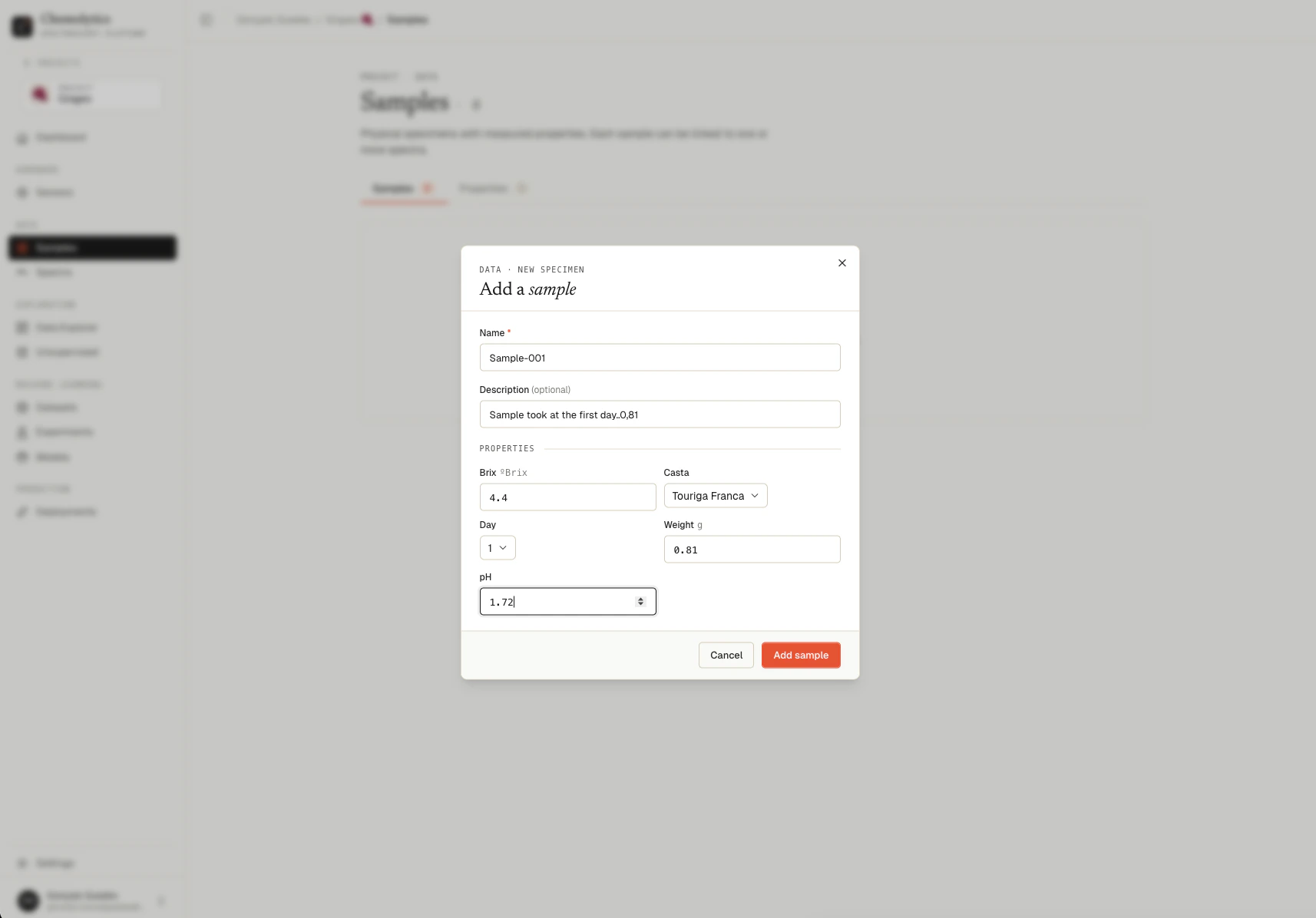
- Switch to the Samples tab
- Click New Sample
- Enter a name and the property values for this sample (e.g., Acidity = 0.35)
- Repeat for all your samples
Step 5: Upload spectra
- Go to Spectra in the sidebar
- Click Upload Spectra
- Select the sensor you created in Step 3
- Upload the CSV file exported from your sensor and click Confirm
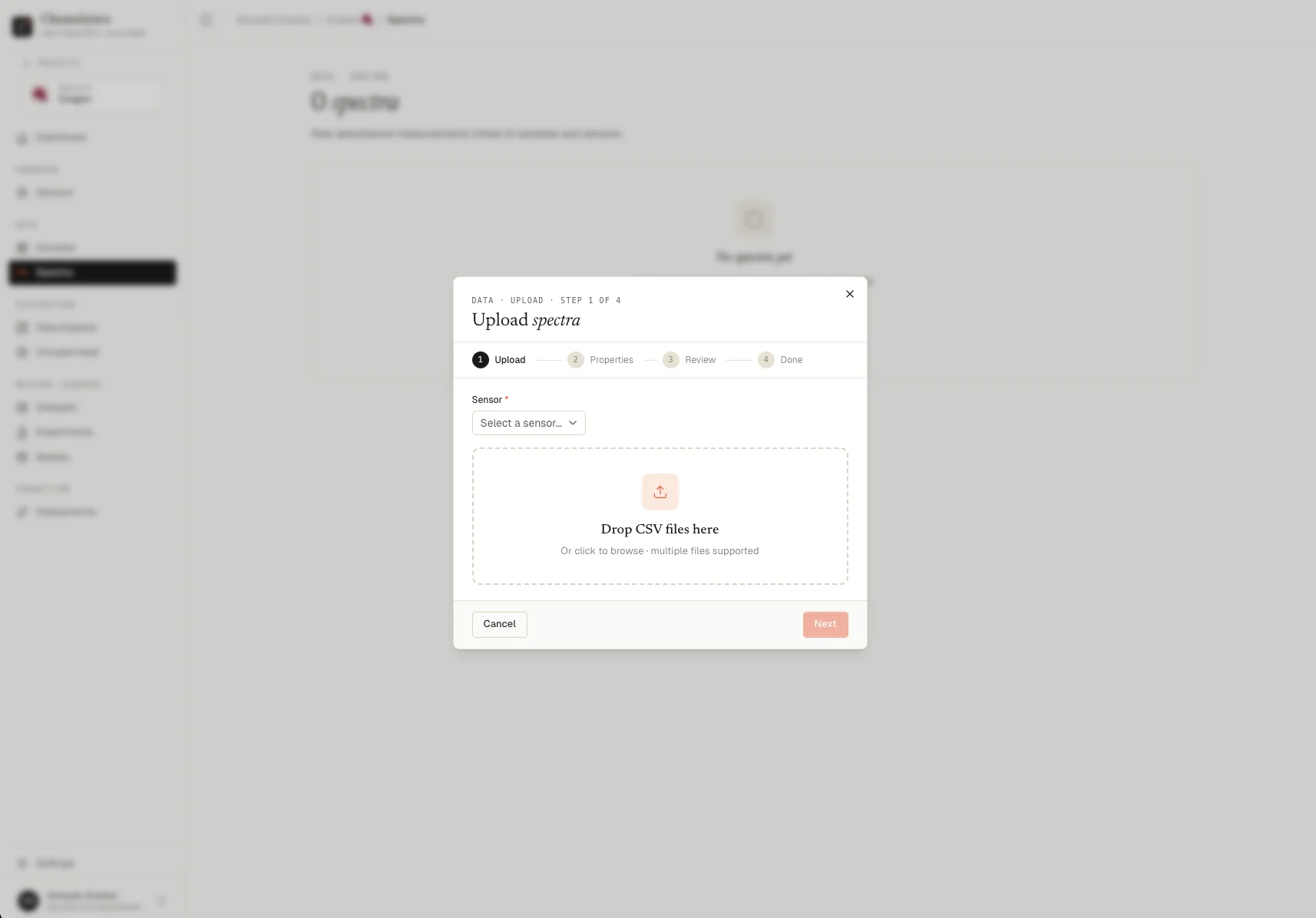
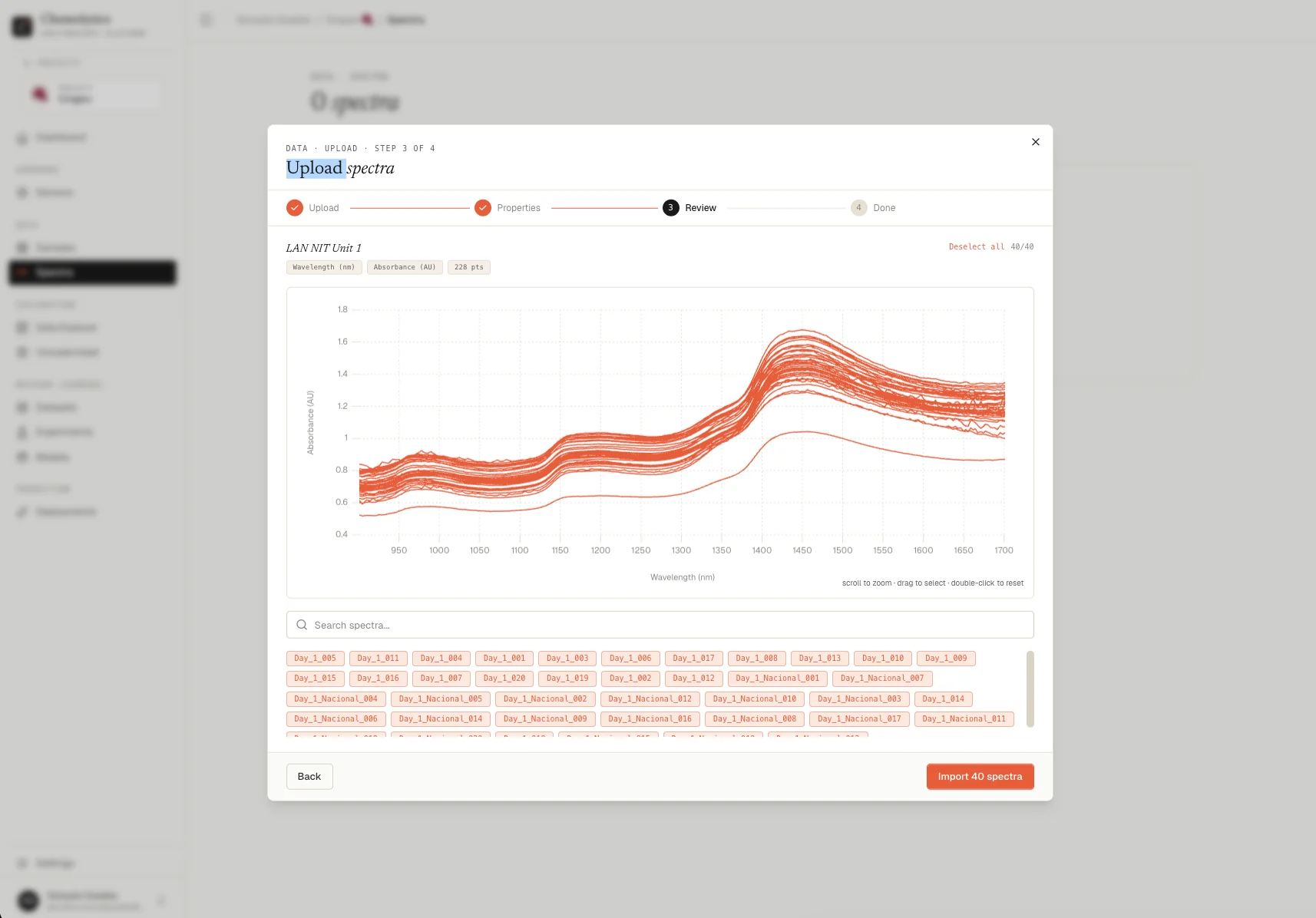
The upload flow has more options: sample mapping, property extraction from filenames, and more. See Uploading spectra for the full guide.
Step 6: Explore your data (optional)
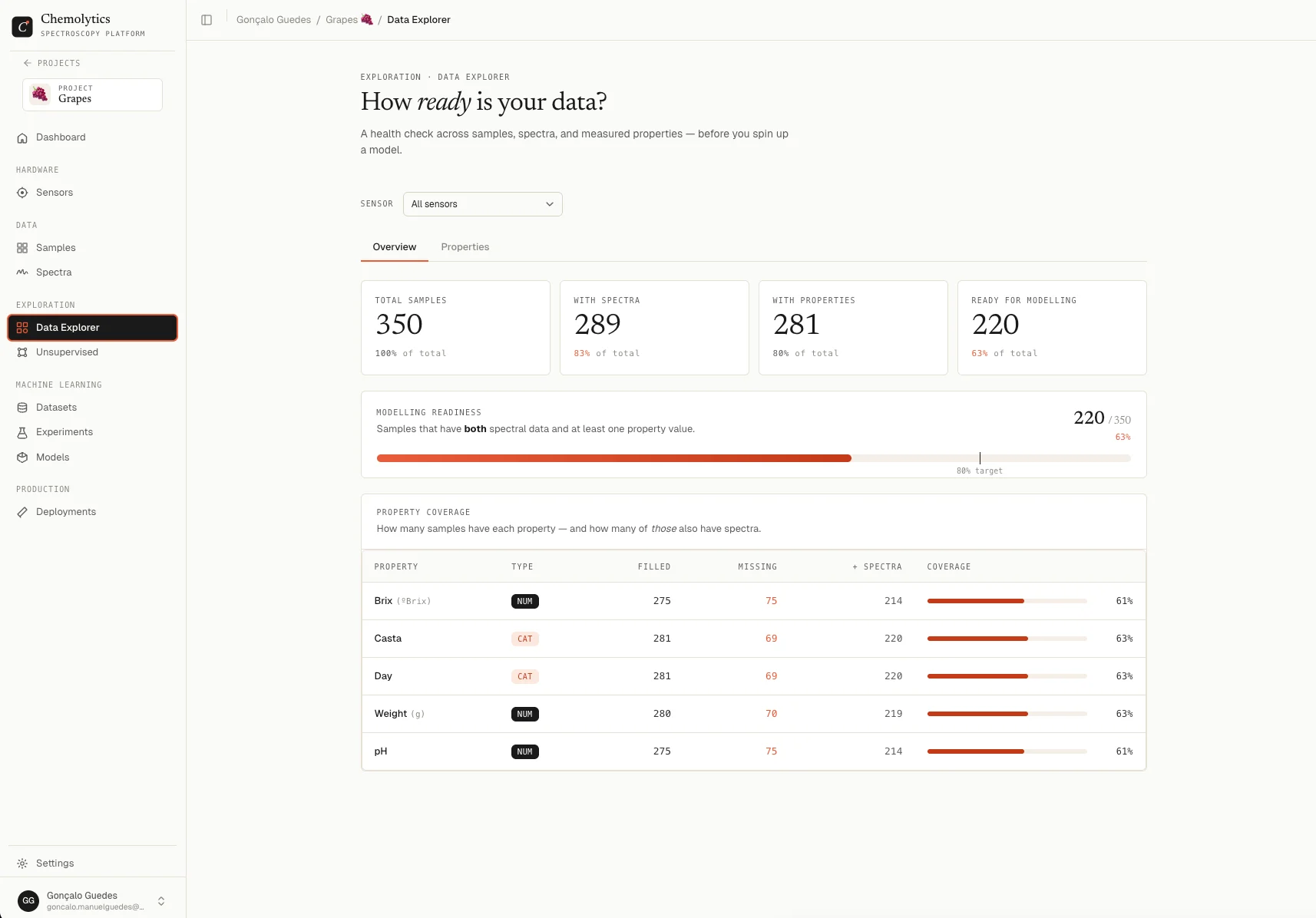
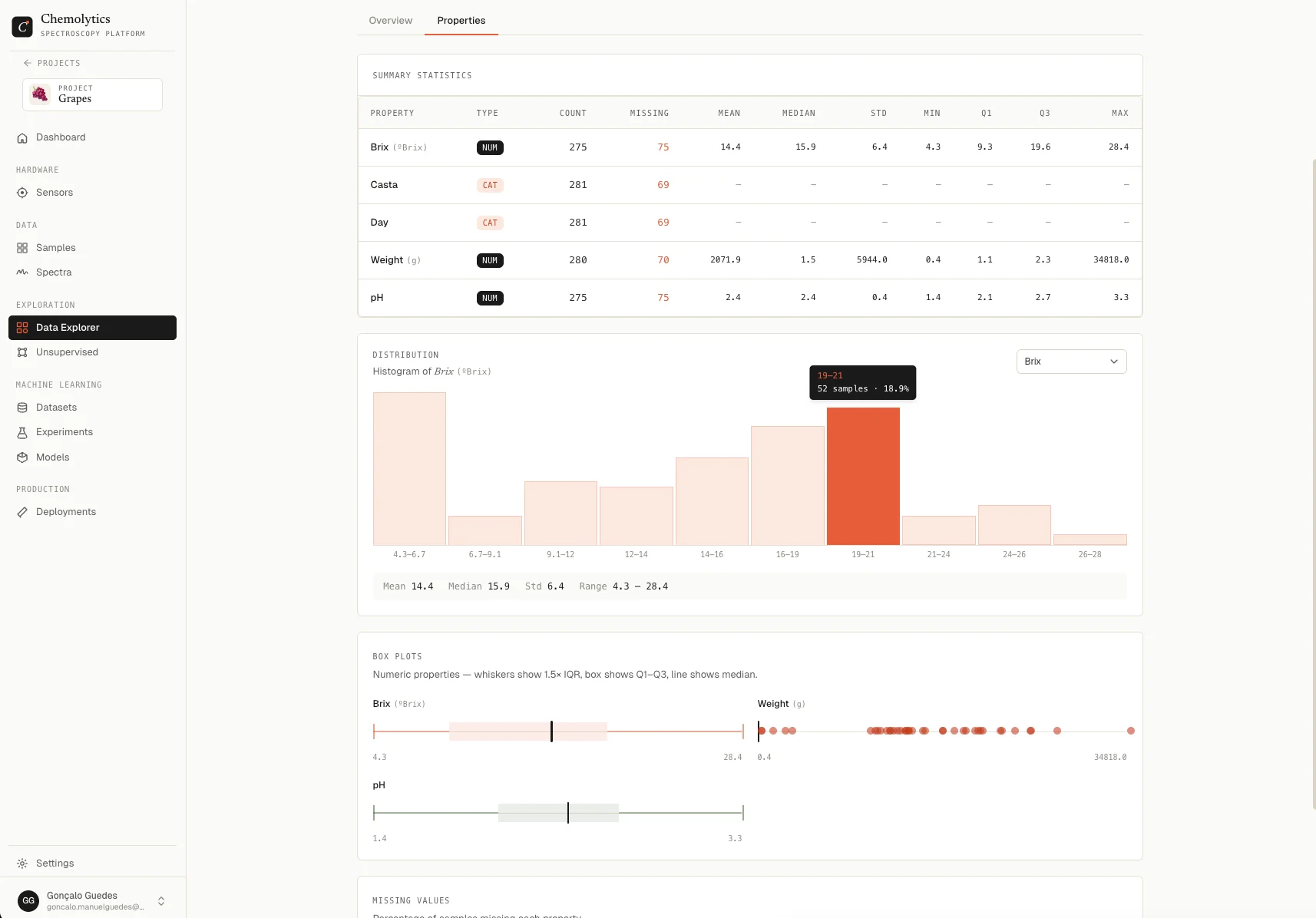
Before modelling, it’s worth checking if your data is ready and looking for patterns or outliers.Data Explorer
- Go to Data Explorer in the sidebar
- Check the Modelling Readiness score. It shows how many samples have both spectra and property values
- Switch to the Properties tab to see summary statistics and distributions for each property
Unsupervised analysis
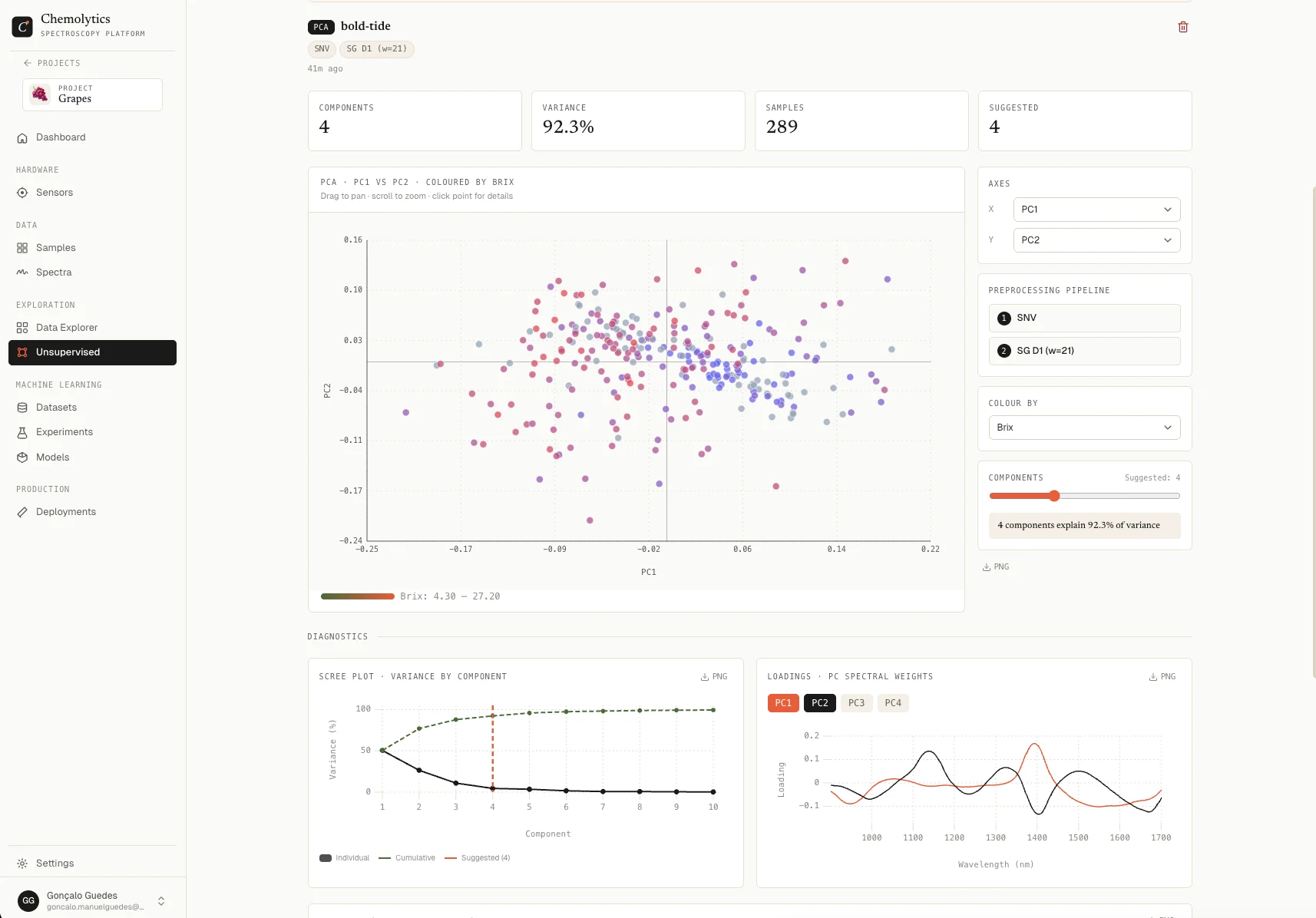
- Go to Unsupervised in the sidebar
- Click New Analysis, select your sensor and spectra
- Click New Run, choose a method (PCA, t-SNE, or K-Means), pick a preprocessing pipeline, and run
- Inspect the scatter plot, colour it by a property to spot groupings and outliers
Step 7: Create a dataset
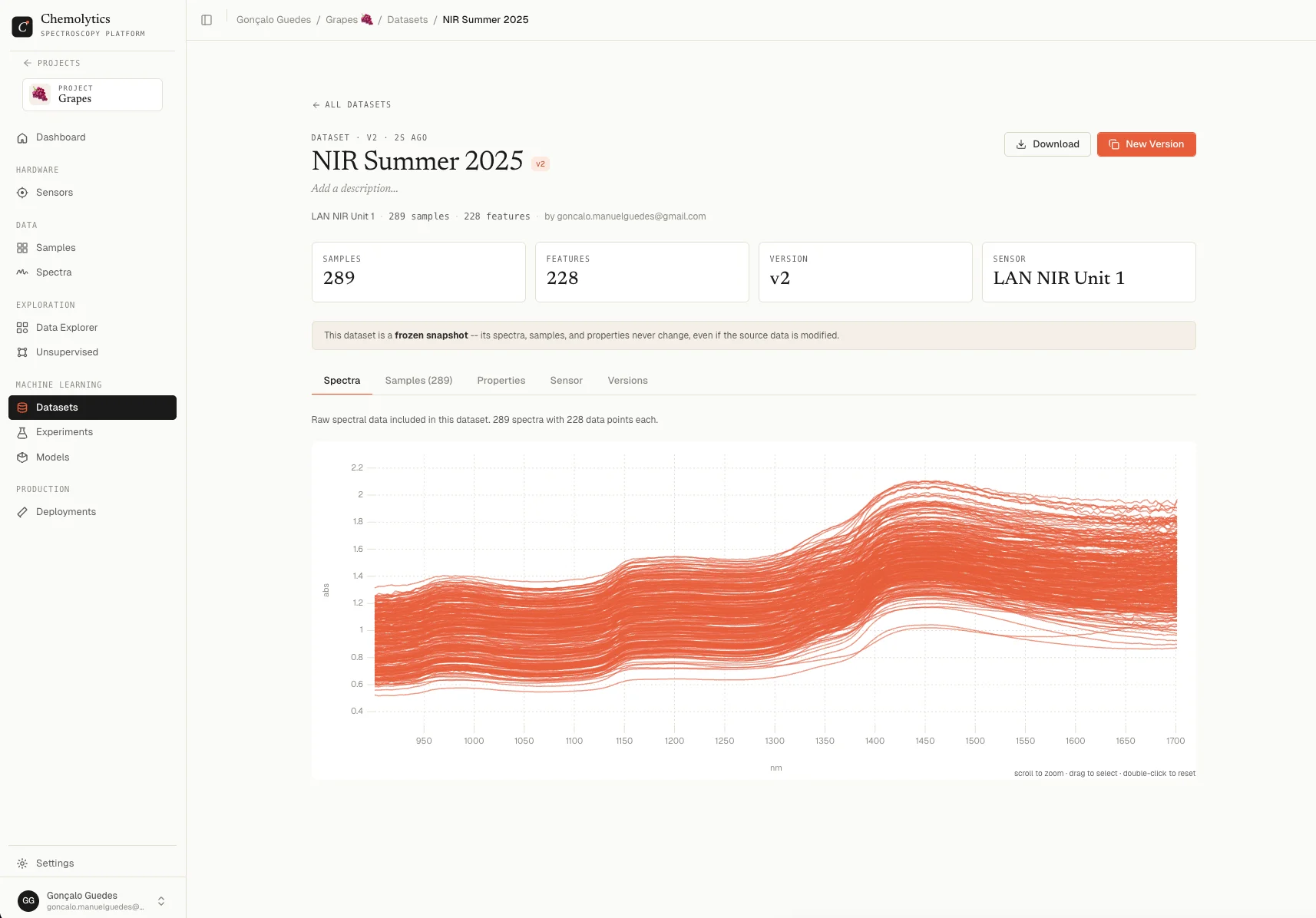
A dataset bundles your spectra with their sample properties into a ready-to-model package.- Go to Datasets in the sidebar
- Click New Dataset
- Select the sensor and the samples to include
- Give it a name and click Create
Step 8: Run an experiment (CoPilot mode)
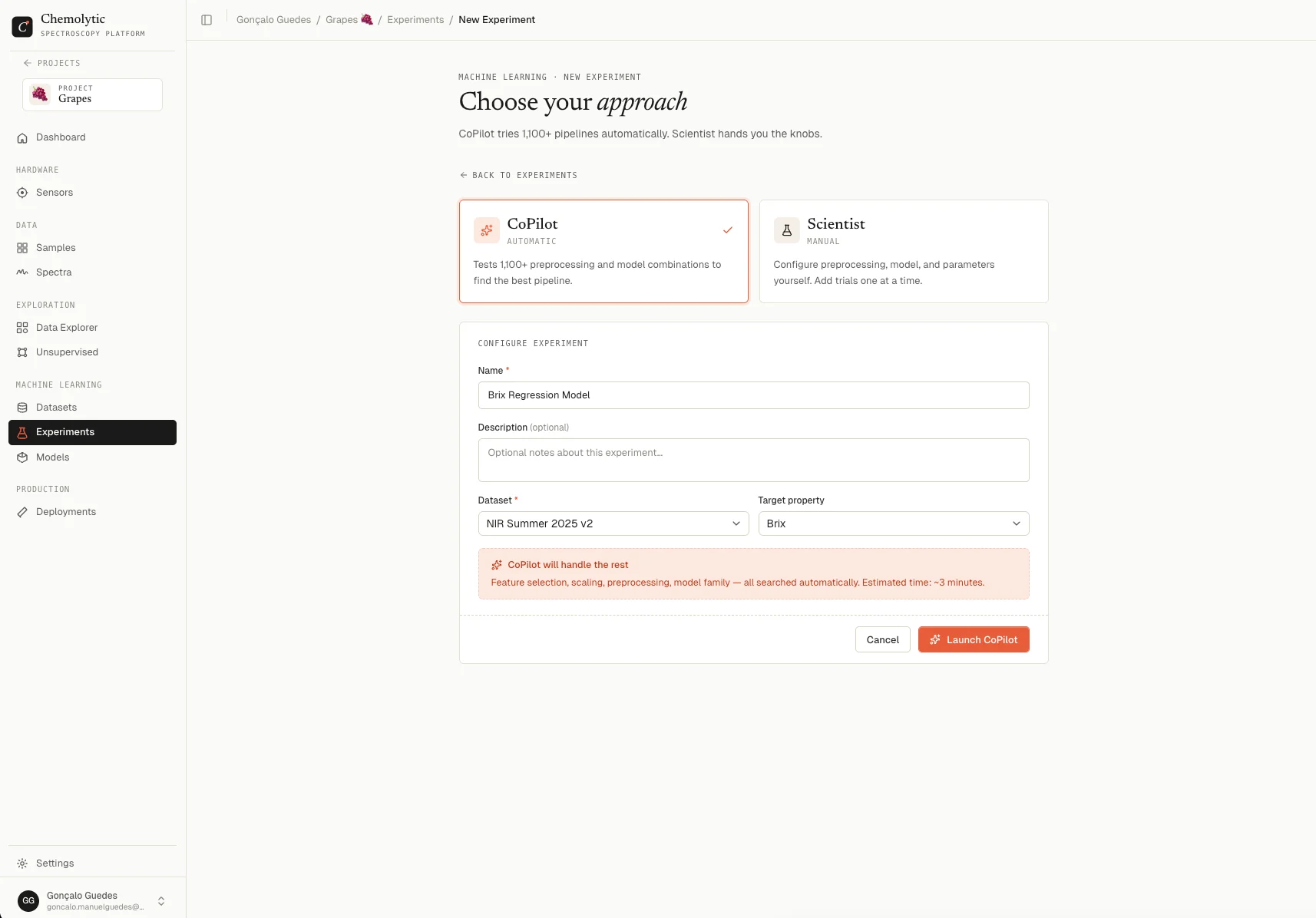
CoPilot automatically finds the best model for your data.- Go to Experiments in the sidebar
- Click New Experiment
- Select CoPilot mode
- Choose your dataset and the target property you want to predict (e.g., “Acidity”)
- Click Create and training starts immediately in the background
- Wait for the experiment to complete. You’ll see a progress indicator and trials appearing in real time
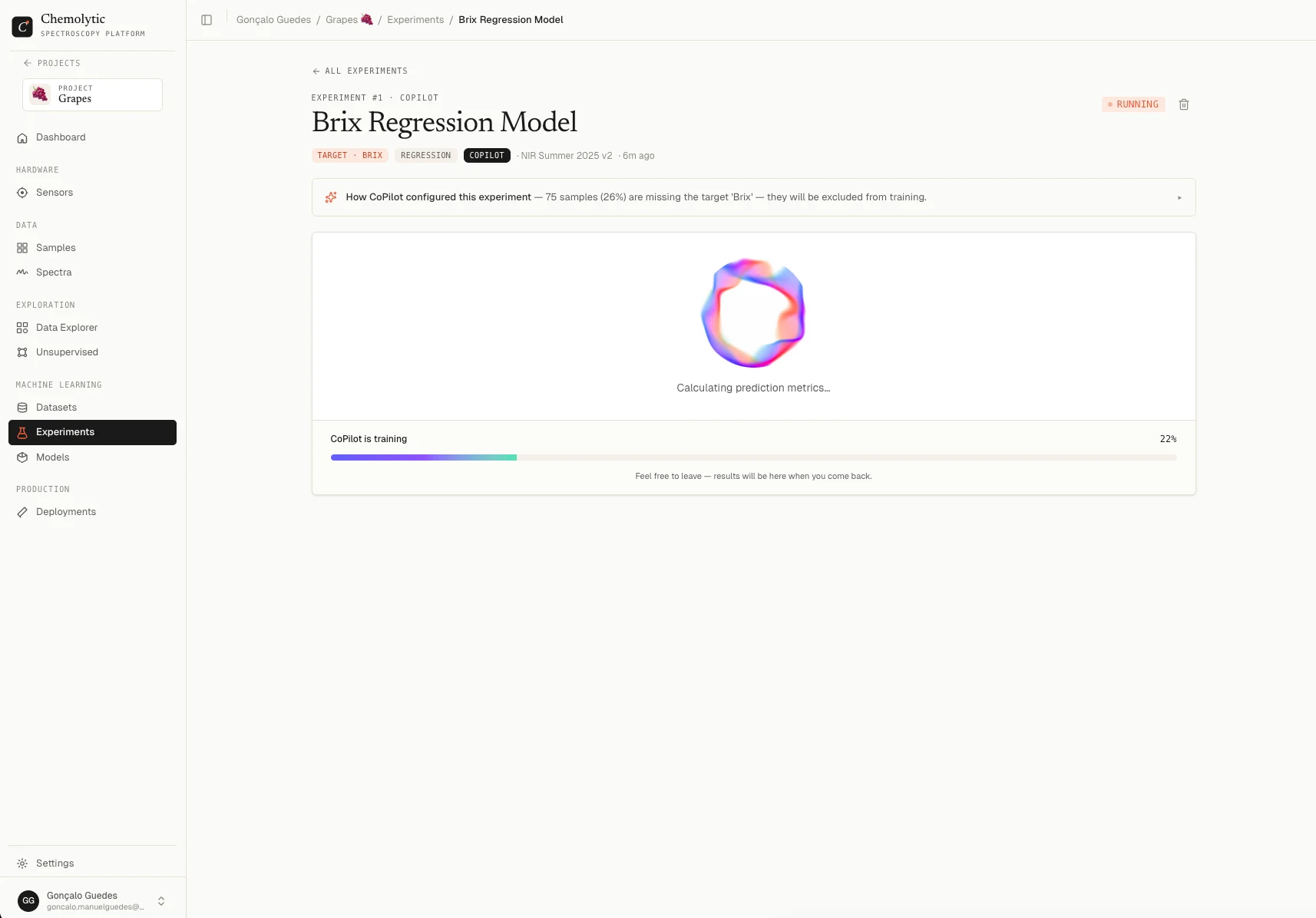
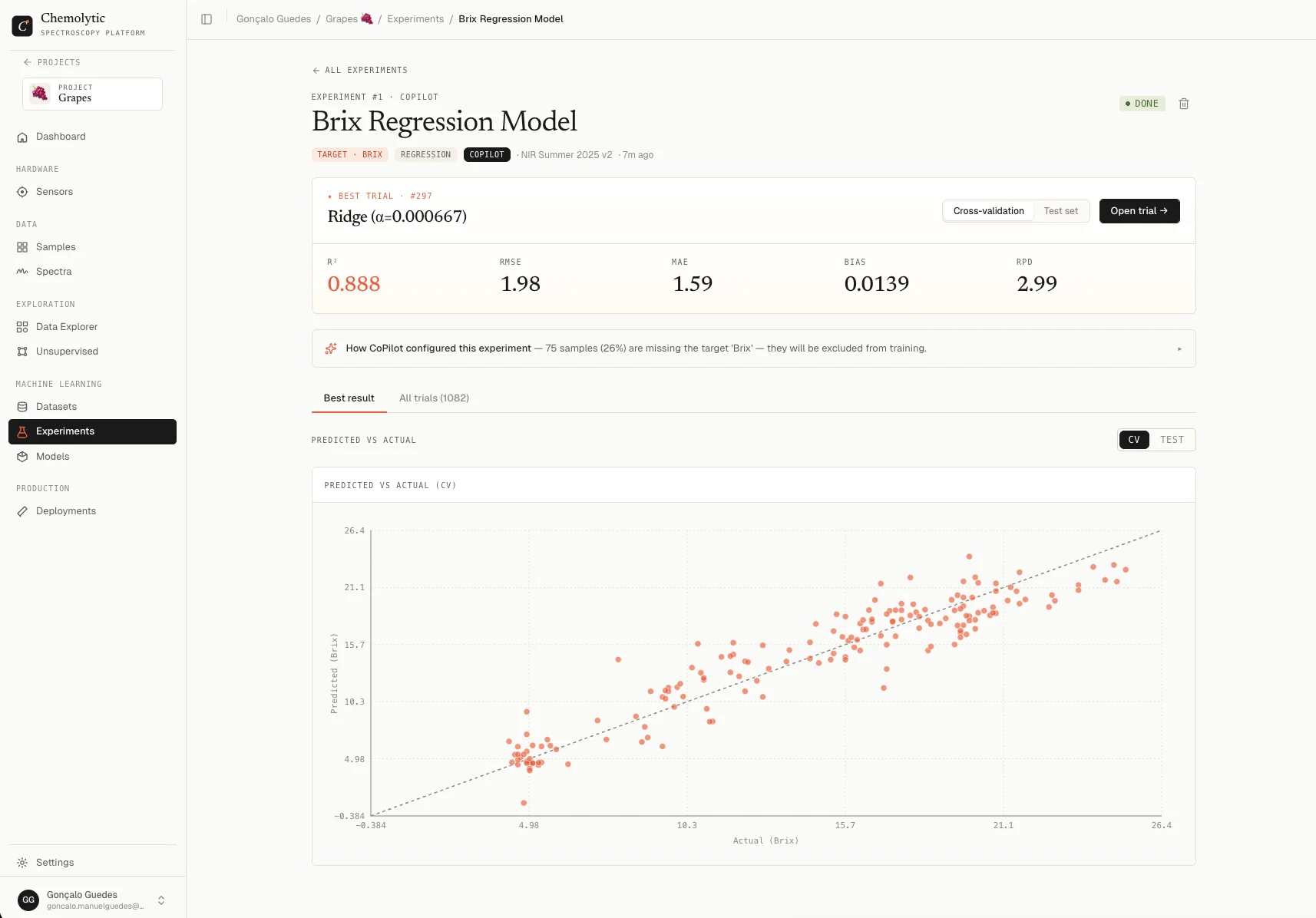
- When done, review the best model and its metrics (R², RMSE, etc.)
Step 9: Register and deploy the model
- From the experiment results, click Register Model on the best trial
- Go to Models in the sidebar and your model appears there
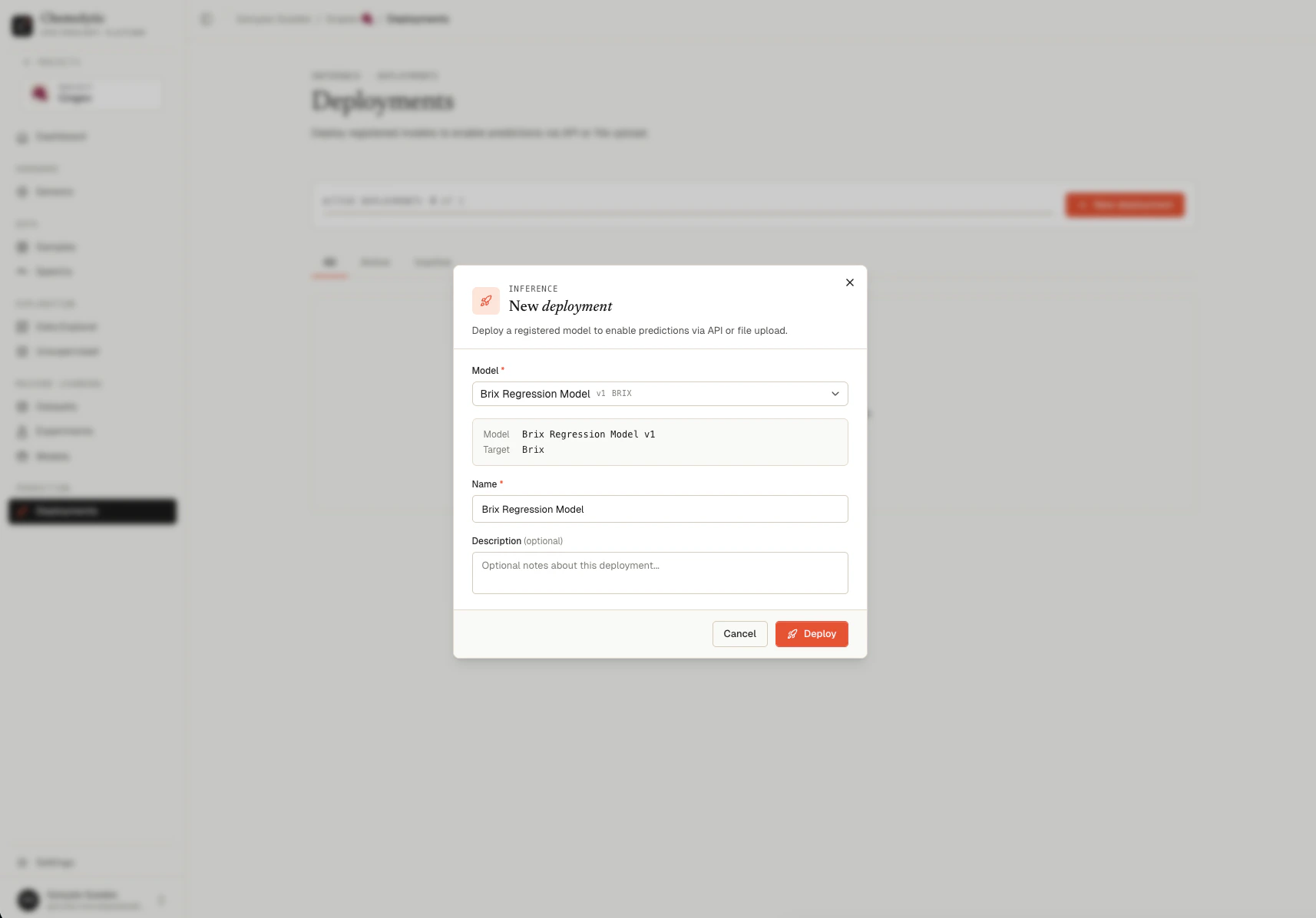
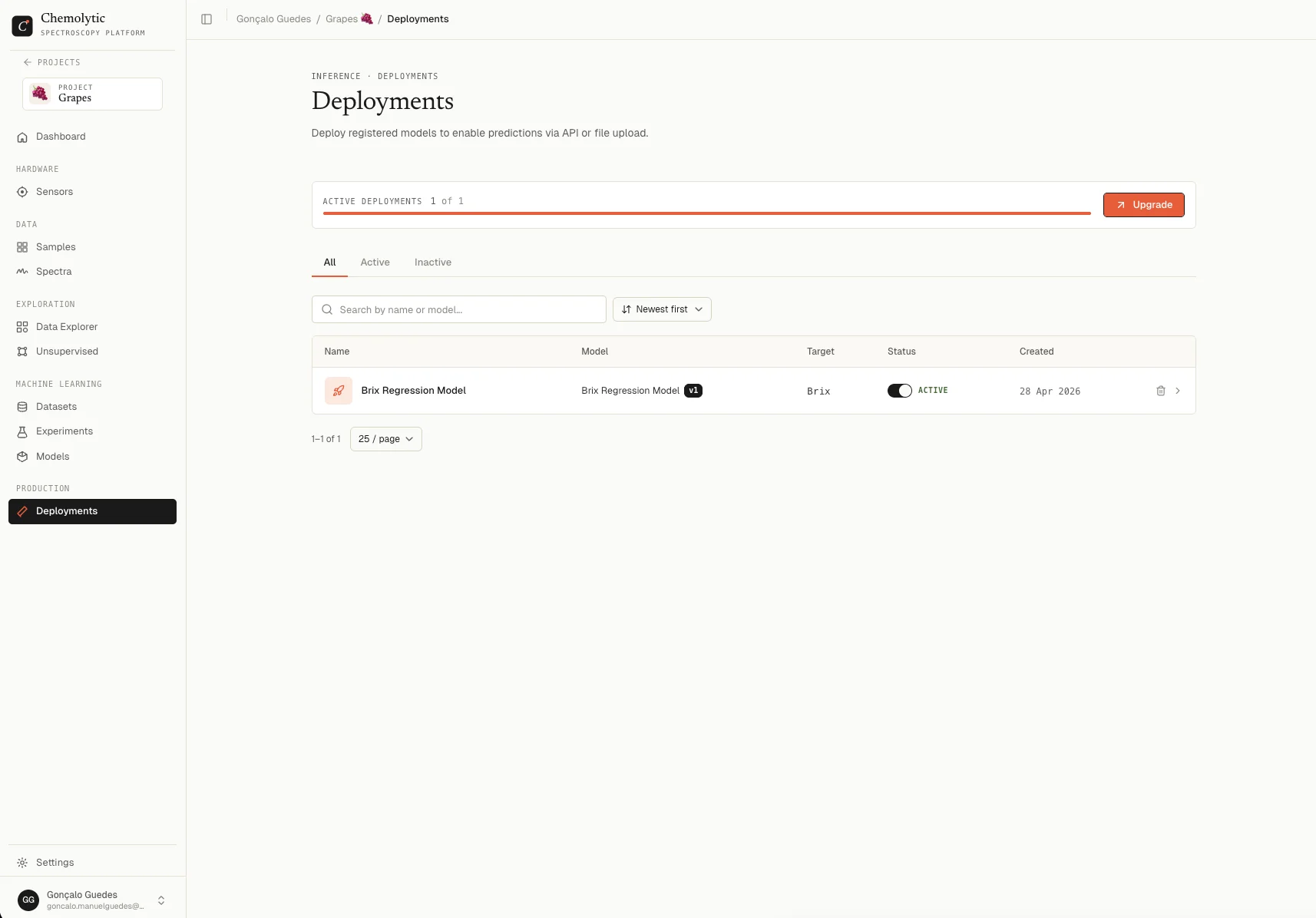
- Go to Deployments and click New Deployment
- Select your registered model and click Deploy
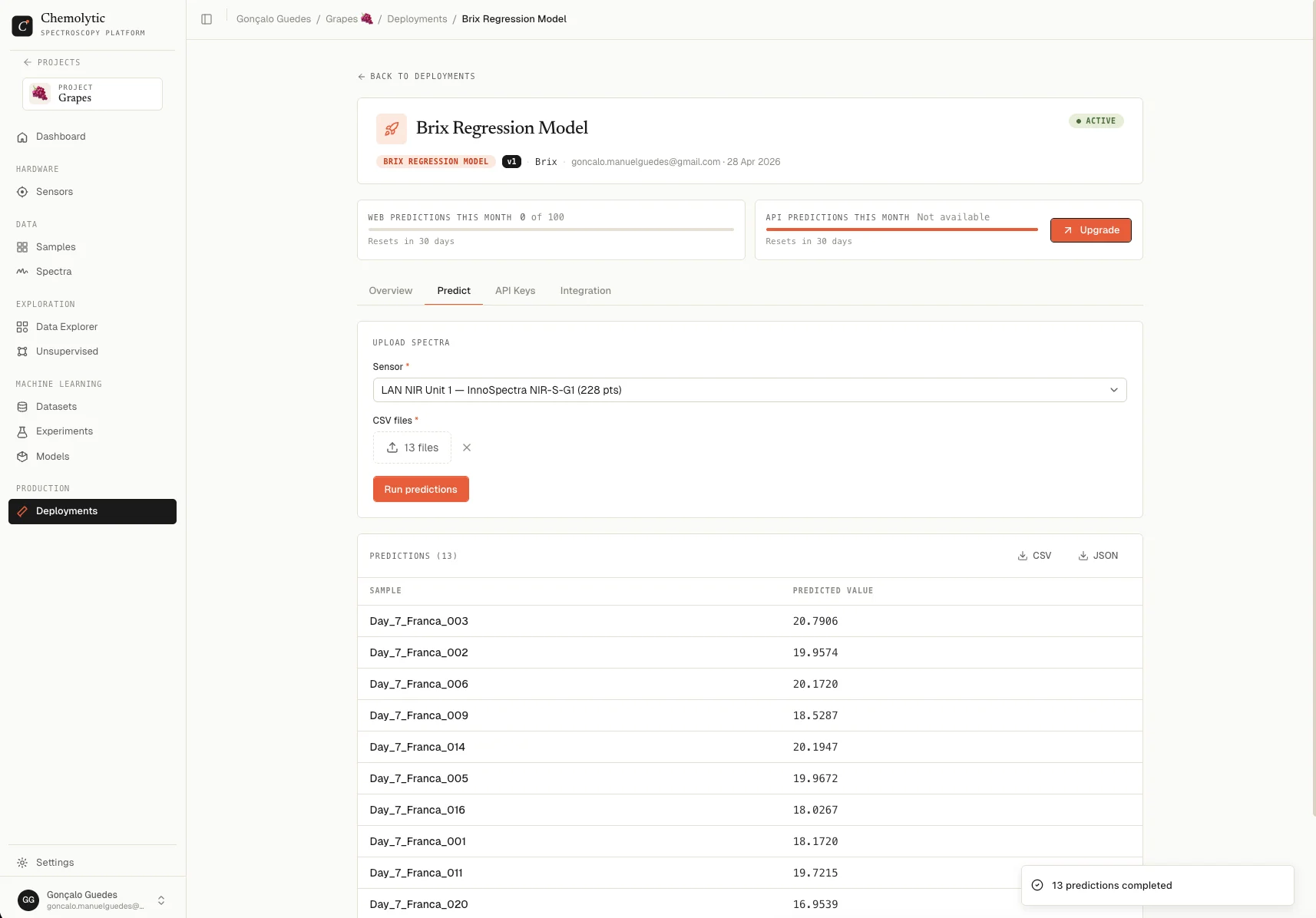
Step 10: Make predictions
- On the Deployment detail page, upload a new spectra CSV
- See predictions instantly. The results table shows predicted values for each spectrum
You’ve gone from raw spectra to live predictions. Everything from here is about refining the process: better samples, better preprocessing, better models.
What’s next?
Understand key concepts
Learn what sensors, samples, datasets, and preprocessing mean.
Explore your data first
Run PCA or t-SNE before modelling to find outliers and patterns.
Try Scientist Mode
Configure preprocessing and models manually for full control.
Invite your team
Add colleagues and collaborate on projects together.