Documentation Index
Fetch the complete documentation index at: https://docs.chemolytic.com/llms.txt
Use this file to discover all available pages before exploring further.
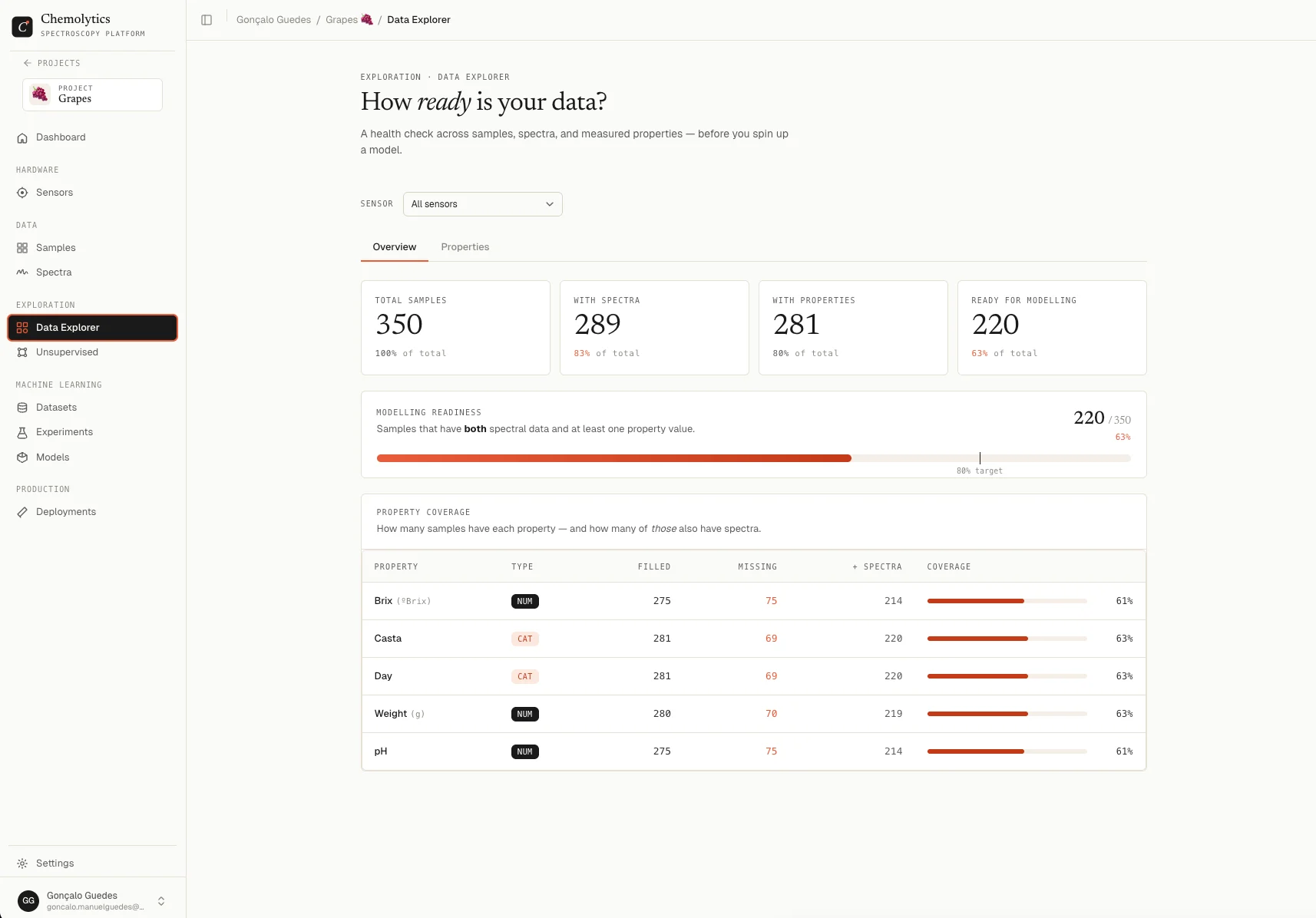
The Data Explorer is a health check across your samples, spectra, and properties. Use it before training any model to spot missing data, imbalanced categories, and outliers in your property values.
Go to Data Explorer in the project sidebar.
Sensor filter
By default, all sensors are included. Use the Sensor dropdown at the top to focus on a specific instrument. Click Clear to go back to all sensors.
This filter affects every metric on the page: counts, modelling readiness, and property statistics are all computed only on samples linked to the selected sensor.
Overview tab
Stat tiles
Four numbers across the top:
| Tile | What it counts |
|---|
| Total samples | Every sample in the project (or filtered by sensor) |
| With spectra | Samples that have at least one spectrum uploaded |
| With properties | Samples that have at least one property value set |
| Ready for modelling | Samples that have both at least one spectrum and at least one property value |
The “Ready for modelling” number is the only one that matters for training. Samples missing spectra or property values cannot contribute to a model.
Modelling readiness bar
Shows the same “Ready for modelling” number as a progress bar, with a vertical tick at 80%.
80% is a healthy target. If most of your samples are missing either spectra or property values, fix that before running experiments. A model is only as good as the data behind it.
Property coverage
The table below shows, for each property:
| Column | Description |
|---|
| Property | Property name and unit |
| Type | Continuous (Num) or Categorical (Cat) |
| Filled | Samples with a value for this property |
| Missing | Samples without a value (red if any are missing) |
| + Spectra | Of the filled ones, how many also have spectra |
| Coverage | Visual bar with percentage |
Coverage colors:
- Green (95% or higher): excellent coverage
- Orange (70-94%): acceptable, but watch for bias
- Red (below 70%): risky to model from
Properties tab
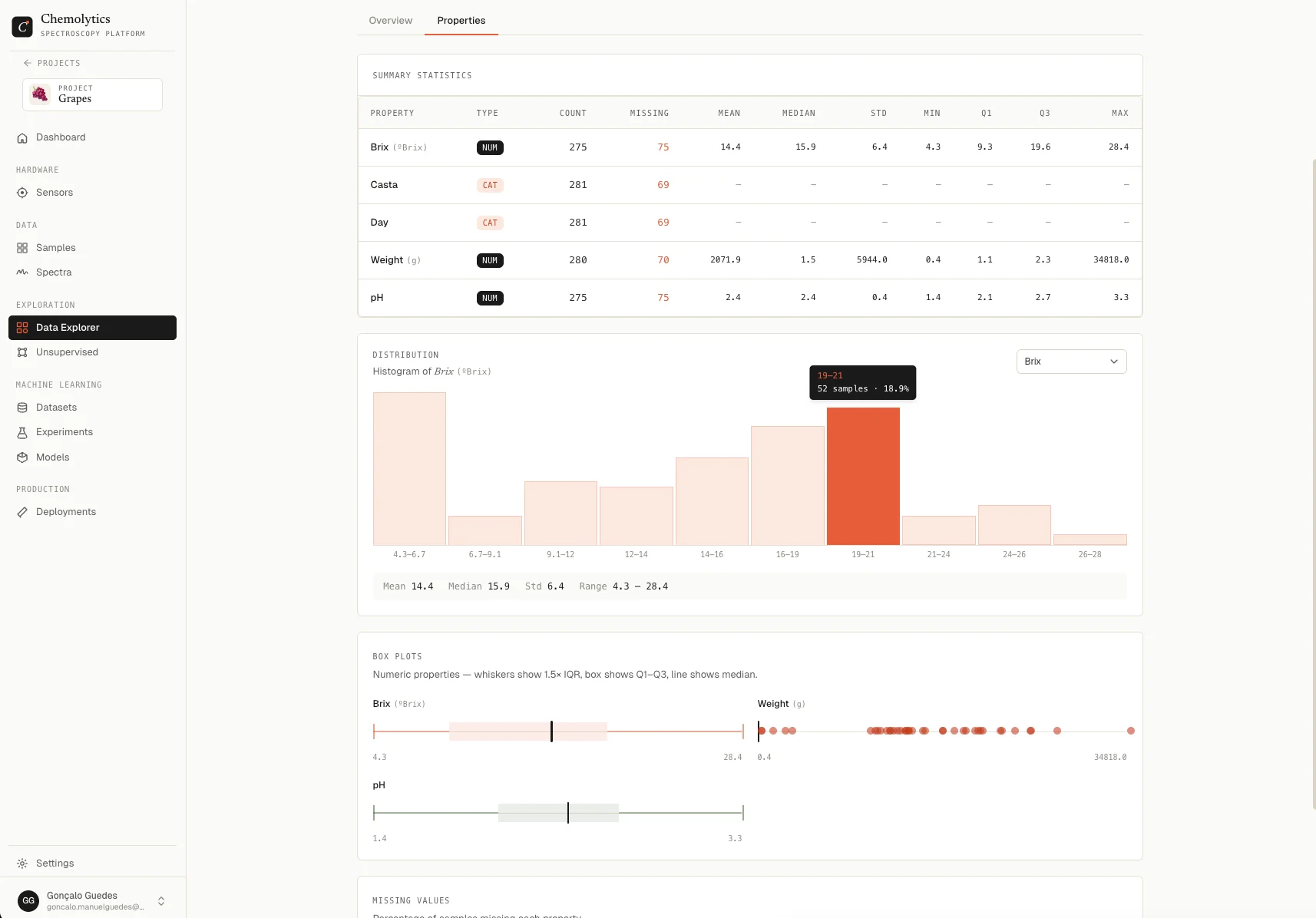
The Properties tab shows distribution statistics for every property.
Continuous properties
Each continuous property shows:
| Stat | Description |
|---|
| Mean | Average of all values |
| Median | Middle value when sorted |
| Std | Standard deviation (spread) |
| Min / Max | Lowest and highest values |
| Q1 / Q3 | First and third quartiles |
A histogram plots the distribution across 10 bins. Use it to spot:
- Skewed distributions (most values clustered on one end)
- Bimodal patterns (two peaks suggesting two underlying groups)
- Gaps where data is missing in a range
A box plot shows the same data as a box-and-whisker chart with outliers marked as scatter points using the Tukey method (1.5 × IQR).
If your property has heavy outliers, your model may overfit to them. Consider whether those outliers are real measurements or data entry errors before training.
Categorical properties
Each categorical property shows a donut chart of category counts with the total in the centre and a per-category breakdown (count and percentage) on the side.
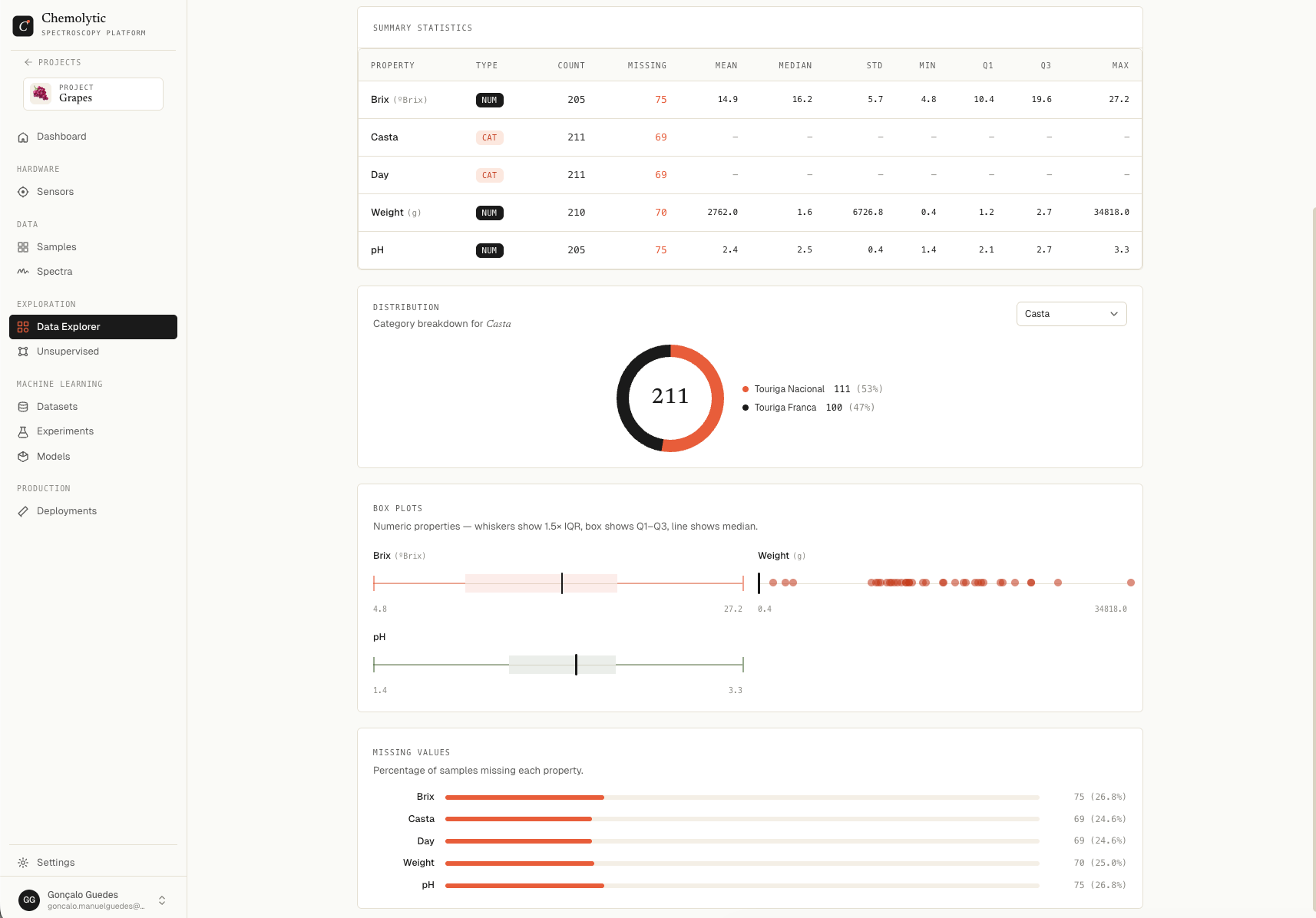
For classification, make sure your categories are reasonably balanced. A property with 95% in one class and 5% in another is hard to model. You may need to gather more samples in the minority categories.
When to come back
Visit the Data Explorer:
- After uploading spectra: confirm the readiness number went up
- After importing samples via CSV: check property coverage didn’t introduce gaps
- Before running an experiment: spot any imbalance or outliers that could bias the model
- After deleting samples: confirm coverage is still acceptable