

When to use Scientist mode
Pick Scientist mode when:- You know the preprocessing or model you want and just need to run it
- You’re benchmarking a specific configuration against other approaches
- CoPilot didn’t converge or you want to override its choices
- You’re testing a paper’s recipe or reproducing literature results
- You want to try a model family CoPilot excluded (e.g., RF on a small dataset)
The Scientist workflow
A Scientist experiment stays in Active status forever. You add jobs, watch them complete, look at the results, and decide what to try next.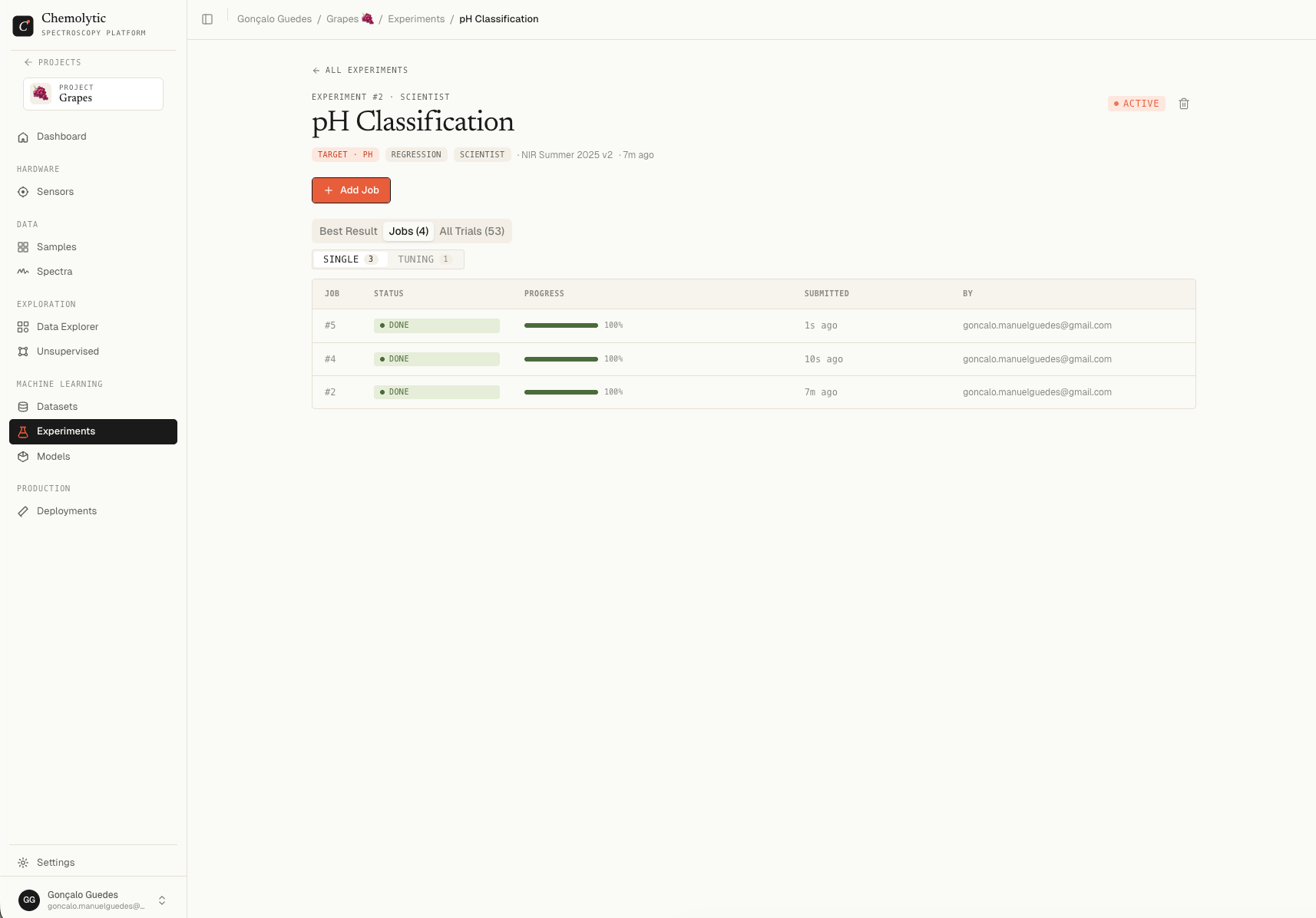
Adding a job
Click + Add Job in the top right of the detail page.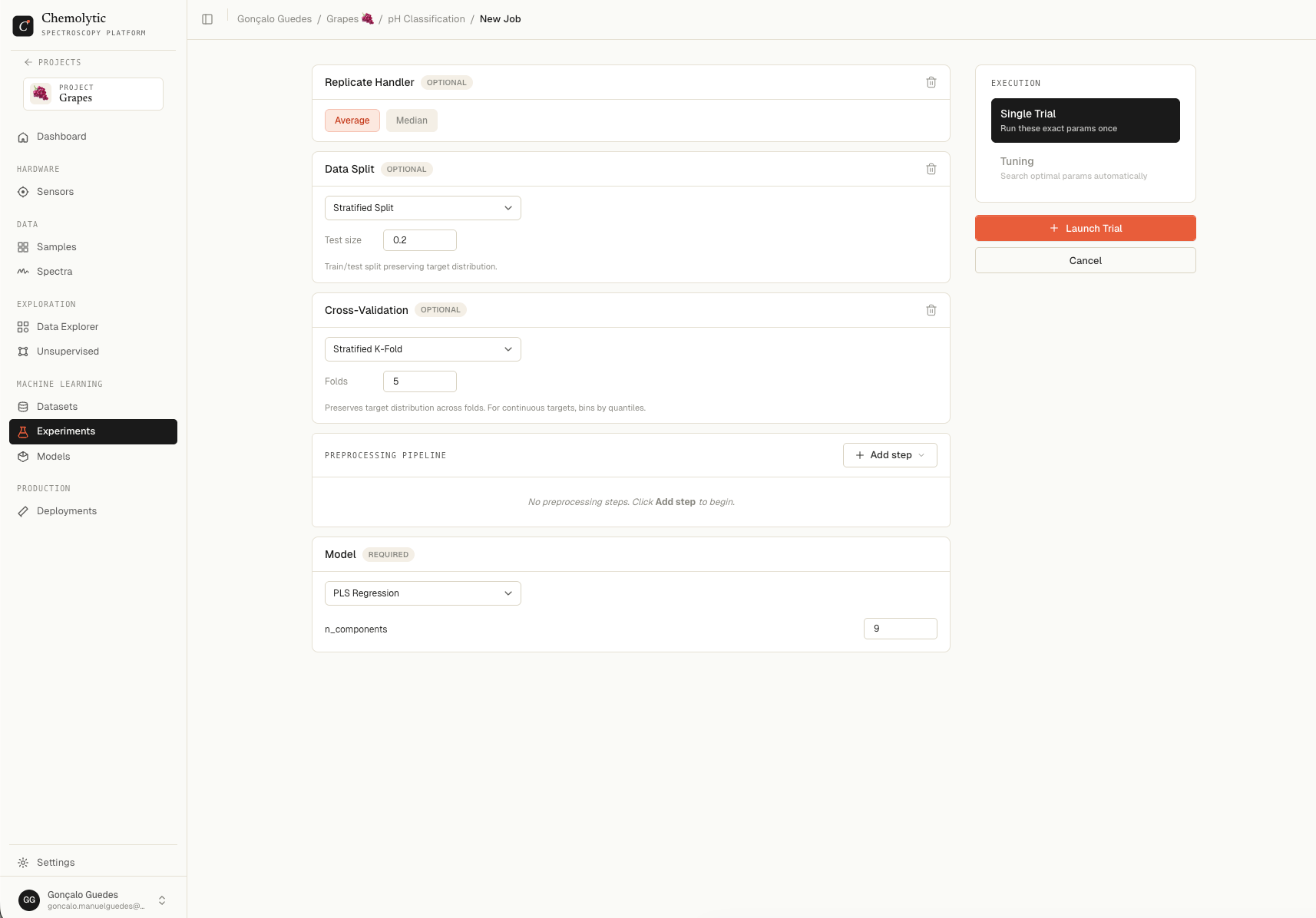
Job type
Two options:
Each completed job (whether 1 trial or 50) counts as one against your monthly Scientist quota.
Preprocessing pipeline
Click + Add step to open the catalog. Steps are grouped by category:
Each step you add appears in order. You can reorder by dragging. Some steps have parameters:
Order matters. SNV → SG D1 produces a different model than SG D1 → SNV. The conventional order is scatter → derivative → scaling.
Model selection
Pick one algorithm. Options depend on the experiment type.Regression models
Classification models
Single trial: exact params
For a Single job, fill in each hyperparameter with one value. The trial uses exactly those numbers. Example: PLS with n_components = 8.Tuning job: parameter ranges
For a Tuning job, you define a search space for each hyperparameter. Two modes per param:
Set the N trials field (default 50). Optuna explores the search space, focusing on regions that produce good metrics.
Example: Tuning PLS with n_components Range (1-20), n_trials = 50. Optuna runs 50 trials with different n_components values, learning which range gives the best CV metric.
Following progress
A running job appears at the top of the detail page in a flame-coloured banner showing:- Job ID
- Job type (single or tuning)
- Trials completed / total
- Progress percentage
Jobs tab
Two sub-tabs: Single and Tuning.
Click any successful tuning job to expand its trial leaderboard inline.
All trials tab
Aggregated leaderboard across all jobs in this experiment. Shows the same columns as the per-job leaderboard. This is useful for:- Comparing trials across different jobs
- Sorting by any metric
- Filtering by model family
Table view vs Parallel view
A toggle at the top switches between two visualizations:
In parallel coordinates, each line is a trial. Each axis is a parameter or metric. You can hover to highlight a trial or click to open its detail.
Iteration tips
Job vs trial quotas
Each job counts as one against your monthly Scientist quota. The number of trials inside a job doesn’t affect the quota. This means a tuning job with 100 trials uses the same quota as a single trial.Best result tab
Once any trial succeeds, the Best result tab appears. It shows the same metric grid and chart as in CoPilot: predicted vs actual (regression) or confusion matrix (classification). The “best” trial is selected automatically based on the primary metric (RMSE for regression, F1 macro for classification). You can register any trial as a model, not just the best one.Registering a model
When a trial looks good:- Click the trial in the leaderboard
- The trial detail modal opens
- Click Register Model