Documentation Index

Fetch the complete documentation index at: https://docs.chemolytic.com/llms.txt

Use this file to discover all available pages before exploring further.

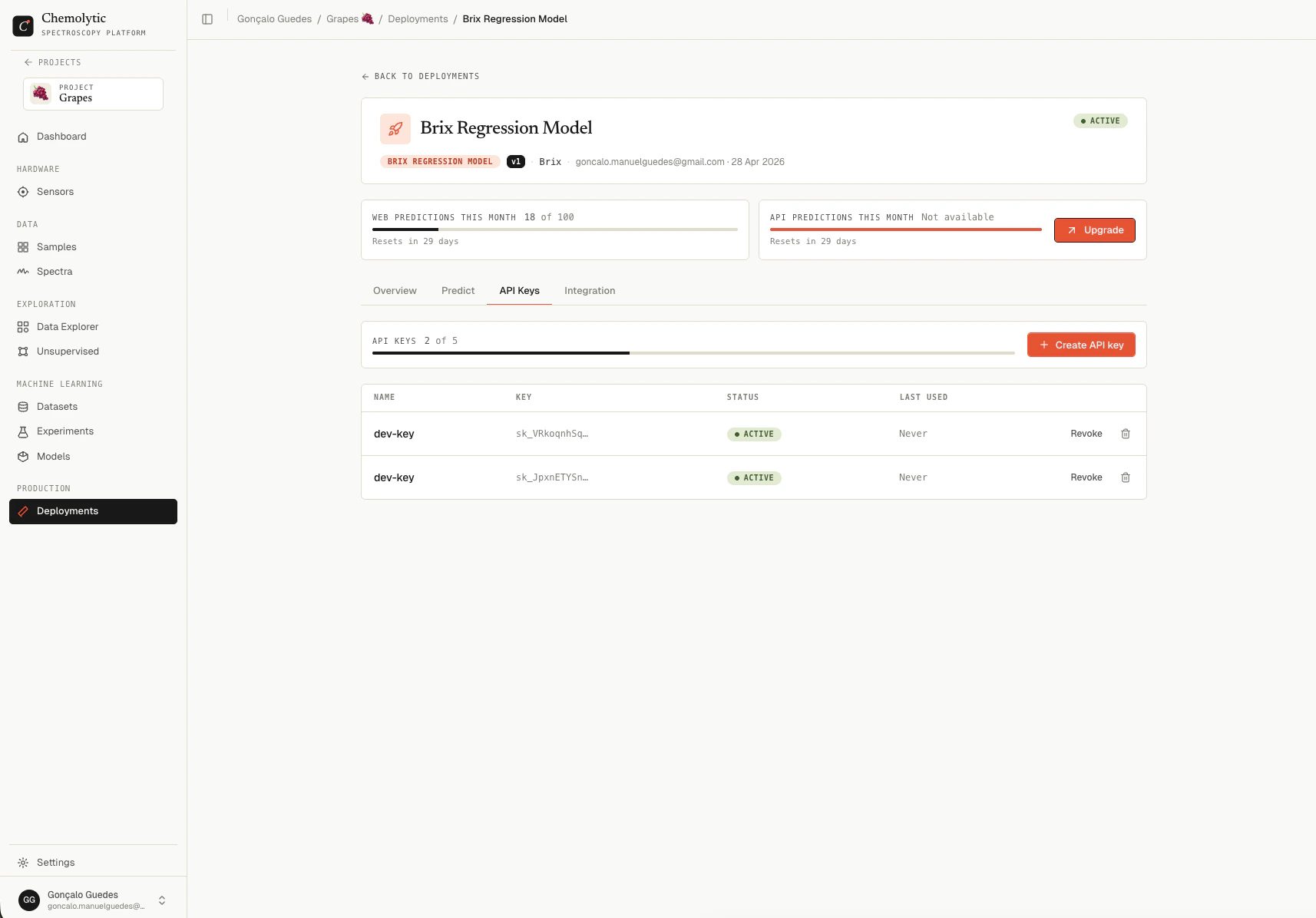
API keys authenticate requests to the Chemolytic prediction API. Each key has a name, a scope, an optional expiration date, and is tied to a deployment (or is project-wide). API keys are managed on the API Keys tab of any deployment detail page.
API Keys tab showing a list of keys with name, prefix, status, and last-used columns
API keys require the allow_api_predict plan feature. Free plans don’t include API access. Upgrade to Pro or higher to create and use keys.

Creating a key

Click Create API key to open the dialog.
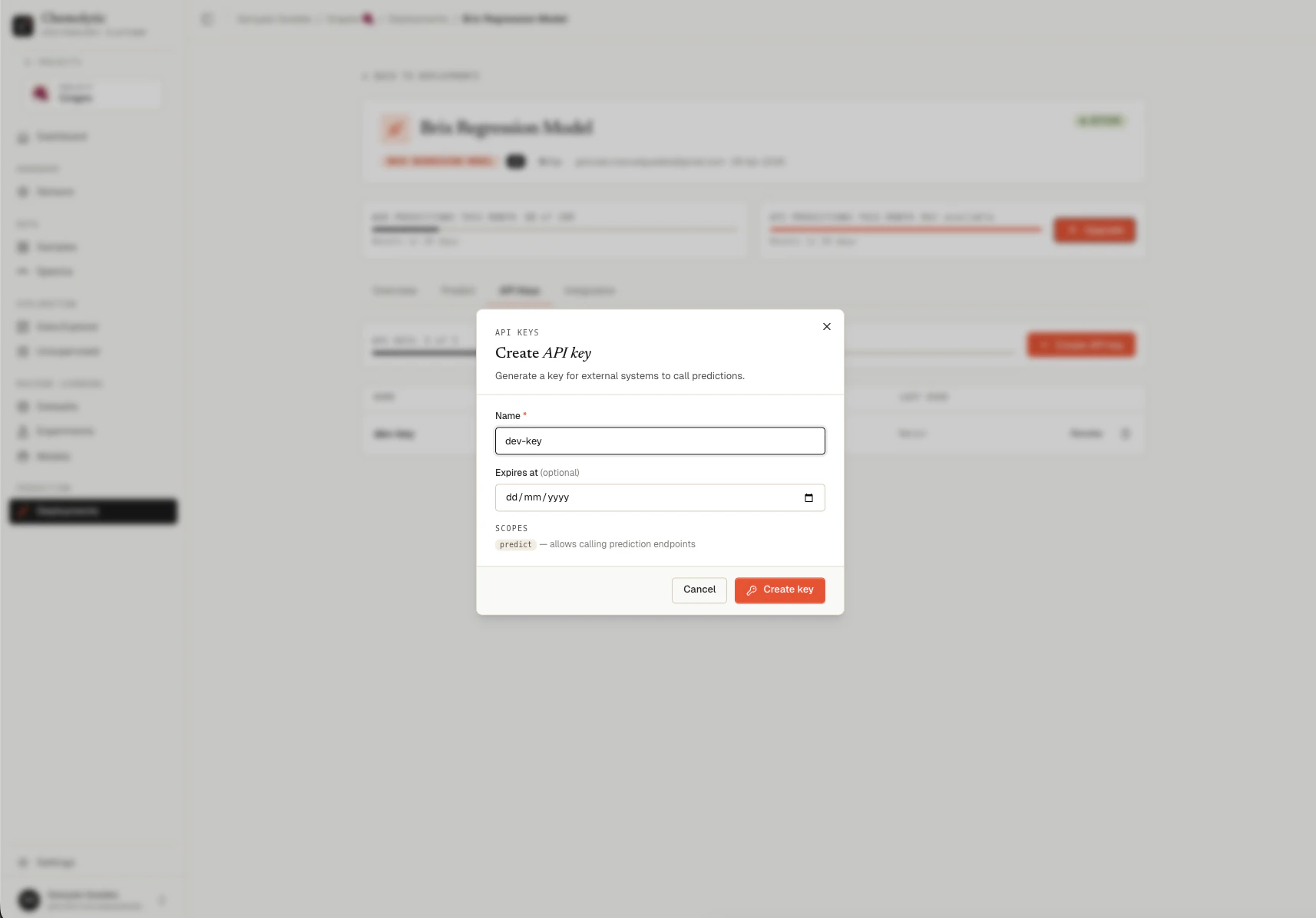
Create API key dialog with name and expiration date fields and a predict scope badge
FieldRequiredNotes
NameYesDescriptive label, e.g., “Production LIMS integration”
Expires atNoDate after which the key is automatically rejected
ScopesRead-onlyCurrently always predict (call prediction endpoints)
Click Create key.

The key reveal modal

Immediately after creation, a modal opens showing the full raw key.
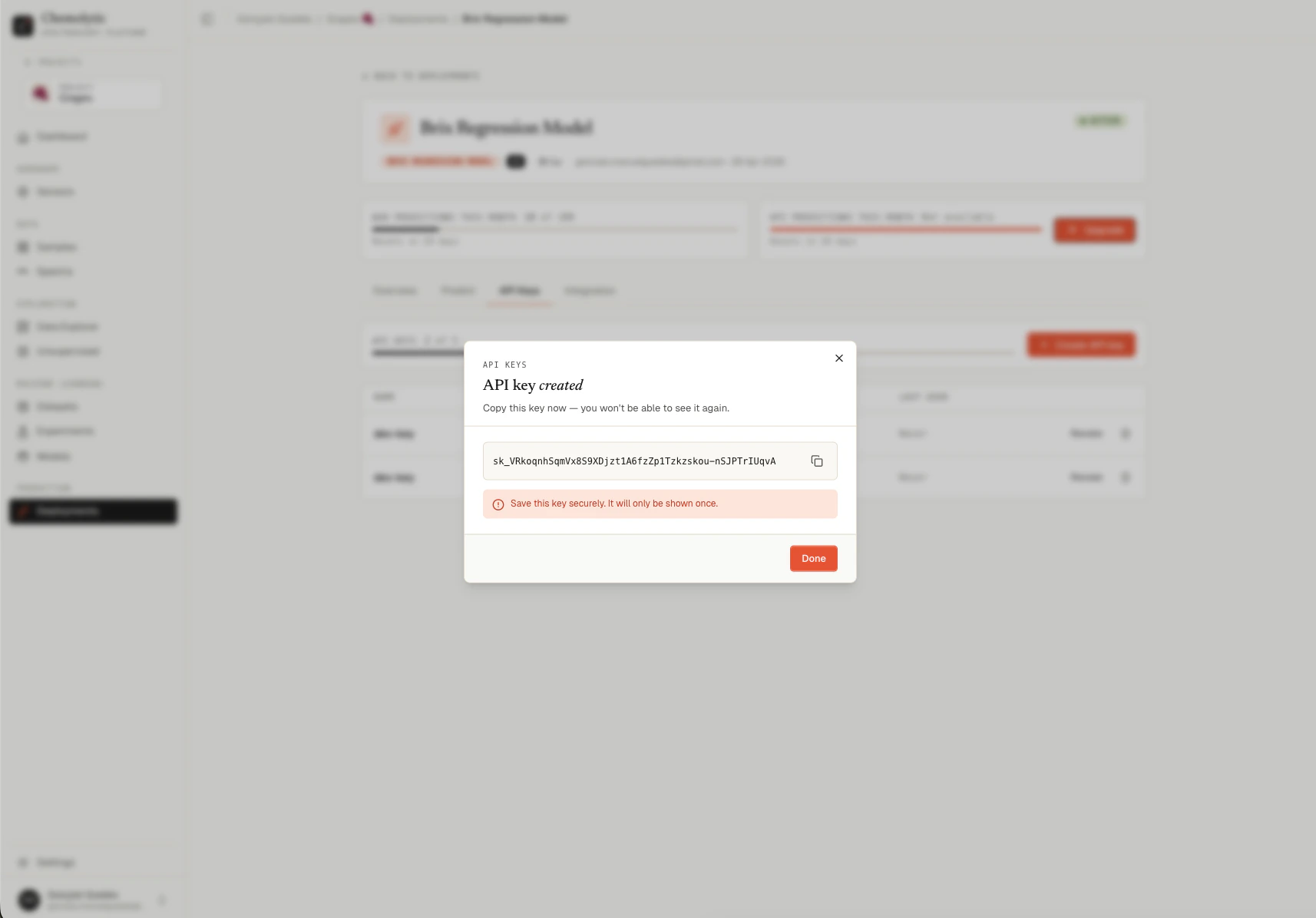
Modal showing a full API key in a code block with a copy button and a warning to save it securely
Copy the key now. Chemolytic stores only a hash of the key, never the raw value. Once you close this modal, the full key cannot be retrieved. You’ll need to create a new key if you lose it.
The key is shown in a copyable code block. Click Copy to copy it to the clipboard, then save it somewhere secure (a password manager, your CI secret store, etc.). Click Done to close the modal.

Key list

The keys table shows:
ColumnDescription
NameThe label you gave the key
KeyThe first 12 characters of the key followed by ...
StatusActive (moss dot) or Revoked (grey dot)
Last usedTimestamp of the most recent successful API call, or “Never”
You can see the prefix at any time, but never the full key again after creation.

Using a key

Send the key in the Authorization header on every API request:
Authorization: Api-Key sk_<your-key>
See API predictions for full request/response examples.

Revoking a key

Click Revoke on any active key. The key is immediately disabled. Any subsequent request using it returns 403 Forbidden. Revoked keys remain in the table for your reference (you can still see when they were last used). To remove them entirely, click the trash icon to delete.
Revoking is reversible only by creating a new key. Once revoked, the old key cannot be reactivated.

Deleting a key

Click the trash icon next to a key. The key is permanently removed from the table. If the key was still active at the time of deletion, it’s automatically revoked first. Existing prediction logs that referenced the key keep their record but the key field is left dangling.

Scoping

Keys can be:
  • Per-deployment: created from a specific deployment’s API Keys tab. Only authorized to call that deployment’s /predict/ endpoints.
  • Project-wide: created at the project level (when supported). Authorized to call any deployment in the project.
The scoping is set automatically based on where you create the key. Per-deployment keys are the default and the safest option (least privilege). If you call a deployment with a key that’s not authorized for it, you get 403 Forbidden: “API key is not authorized for this deployment.”

Plan limits

Your plan limits how many API keys you can have per project (max_api_keys). The current count and limit are shown at the top of the API Keys tab. When you reach the limit, the Create API key button is disabled. Revoke or delete an unused key first.

Tips

One key per integration. Create separate keys for each system that uses your model (production LIMS, staging environment, internal scripts). If one needs to be revoked, you don’t break the others.
Set expirations. Even for “permanent” integrations, set a 6 or 12 month expiration. It forces rotation and limits damage if a key leaks.
Audit last_used regularly. If a key hasn’t been used in months, revoke it. Unused keys are a liability.
Never commit keys to git. Use environment variables or a secrets manager. If you accidentally commit a key, revoke it immediately and create a new one.