
Documentation Index

Fetch the complete documentation index at: https://docs.chemolytic.com/llms.txt

Use this file to discover all available pages before exploring further.

A deployment wraps a registered model and exposes it for predictions. Until a model is deployed, you can only inspect its metrics. Once deployed, you can send new spectra and get predictions back, either through the web UI or programmatically via the API.

Concept

A deployment is a thin layer:
  • Pointer to a model: each deployment points to one registered model + version
  • Active flag: deployments can be toggled active or inactive without being deleted
  • Quota tracker: prediction usage is metered per deployment per month
You can have many deployments per model (e.g., one for production, one for staging) but each deployment points to exactly one model version.

Deployments page

Go to Deployments in the project sidebar.
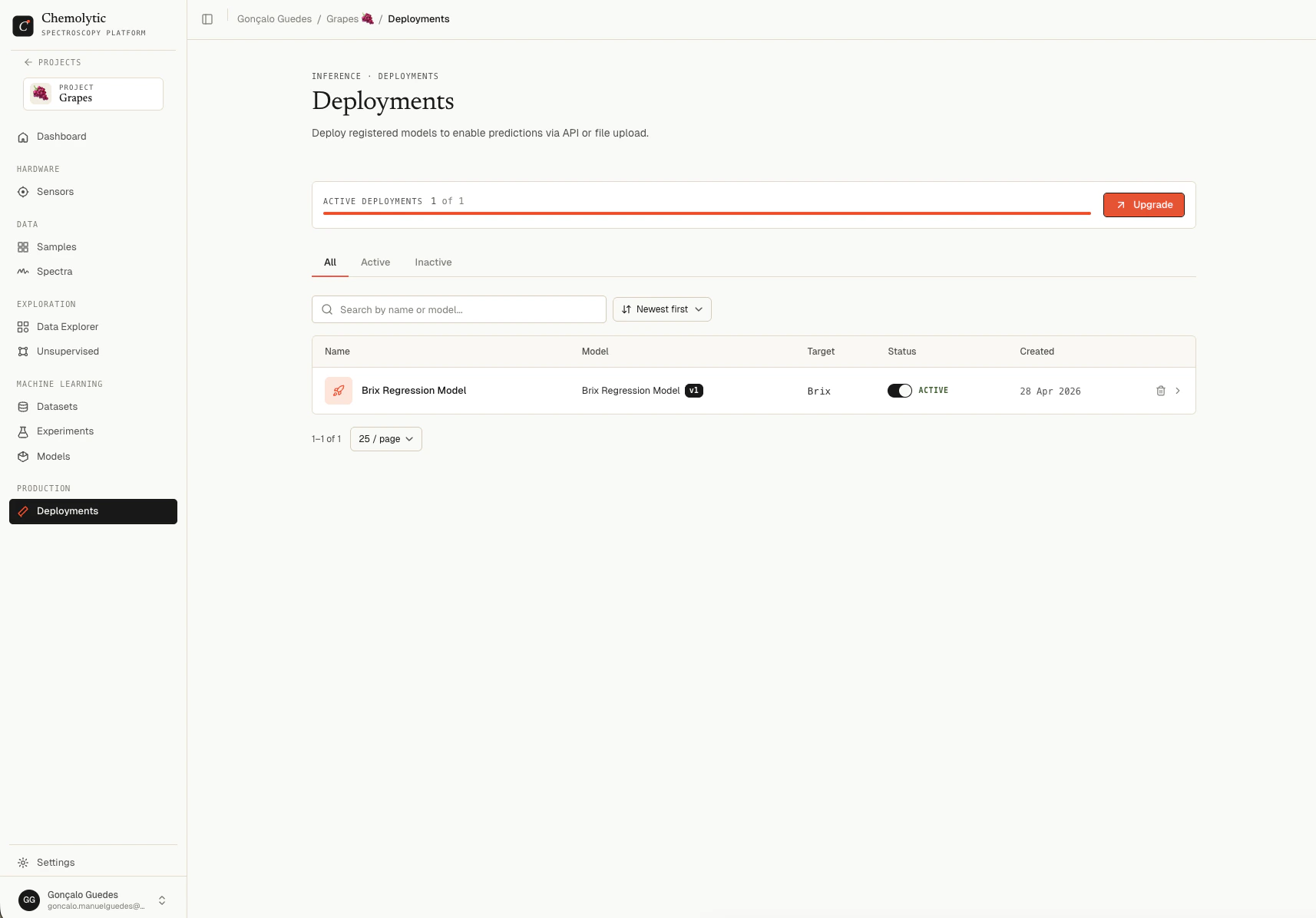
Deployments page showing name, model with version, target, status toggle, and creation date
ColumnDescription
NameDeployment name and optional description
ModelLinked model and version (e.g., Brix Predictor v3)
TargetProperty being predicted
StatusToggle switch: Active or Inactive
CreatedDate created

Tabs

TabShows
AllEvery deployment
ActiveOnly active deployments
InactiveOnly inactive deployments

Creating a deployment

Click New deployment to open the create dialog.
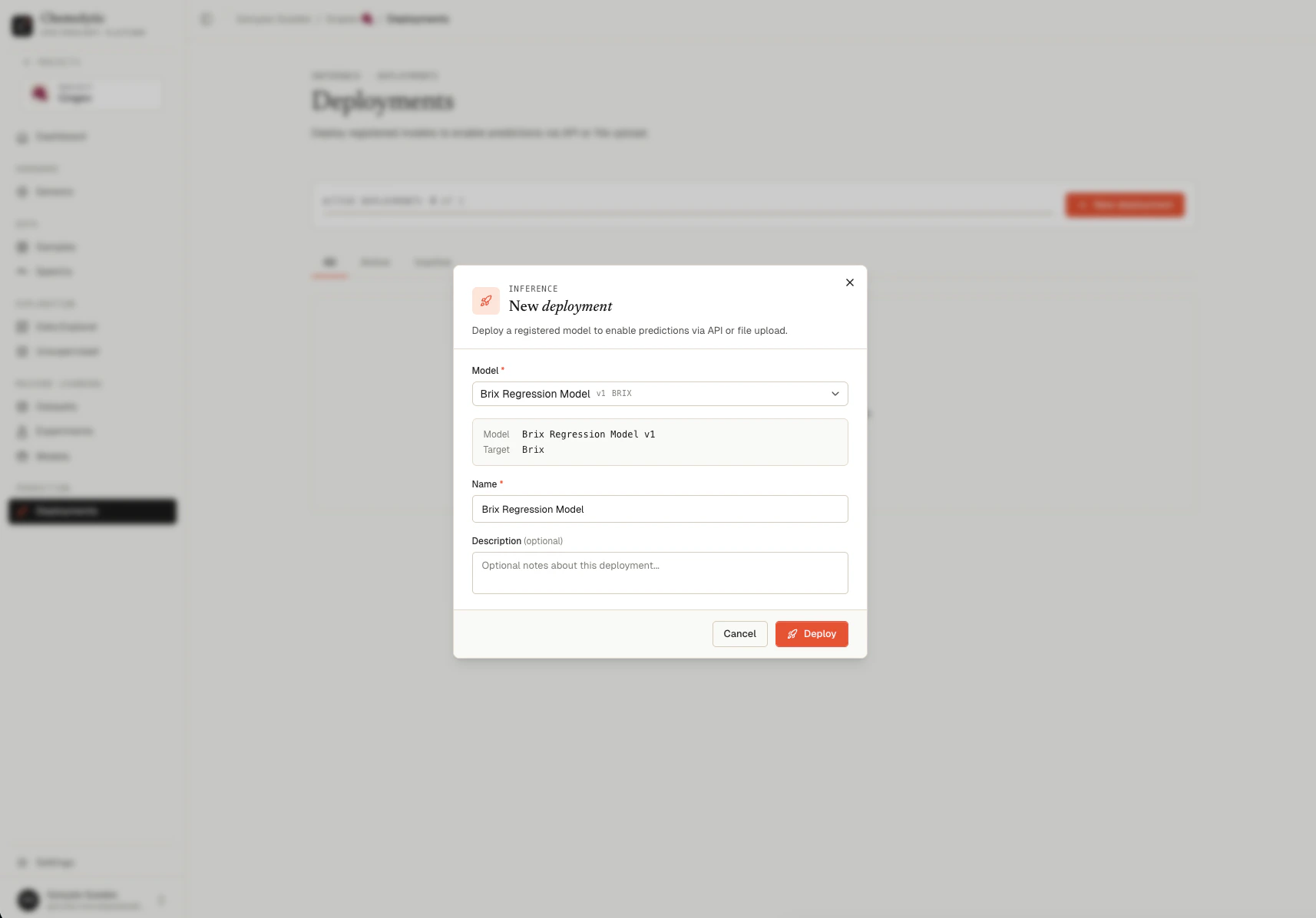
New deployment dialog showing model selector, name, and description fields
FieldRequiredNotes
ModelYesPick from registered models with status Ready
NameYesAuto-fills from the model name; you can override
DescriptionNoFree-text
When you select a model, a preview appears showing the model name, version, and target property. Click Deploy. The deployment is created in Active state by default.

Validation errors

Each model version can have at most one deployment at a time. Either deactivate the existing one or pick a different model version.
The model is still building or failed to build. Wait for status Ready before deploying.
Your plan limits how many active deployments you can have. Deactivate one to free up the slot, or upgrade.

Active vs inactive

Toggle the switch on a deployment row to activate or deactivate it.
StateBehavior
ActivePredictions allowed via web UI and API
InactivePredictions return error: “Deployment is not active.”
Toggle off to pause predictions without losing the deployment configuration. API keys, prediction logs, and usage history are preserved.
Activating a deployment counts against your plan’s max_active_deployments limit. If the limit is reached, the toggle is disabled until you deactivate another deployment or upgrade.

Deployment detail

Click a deployment row to open its detail page.
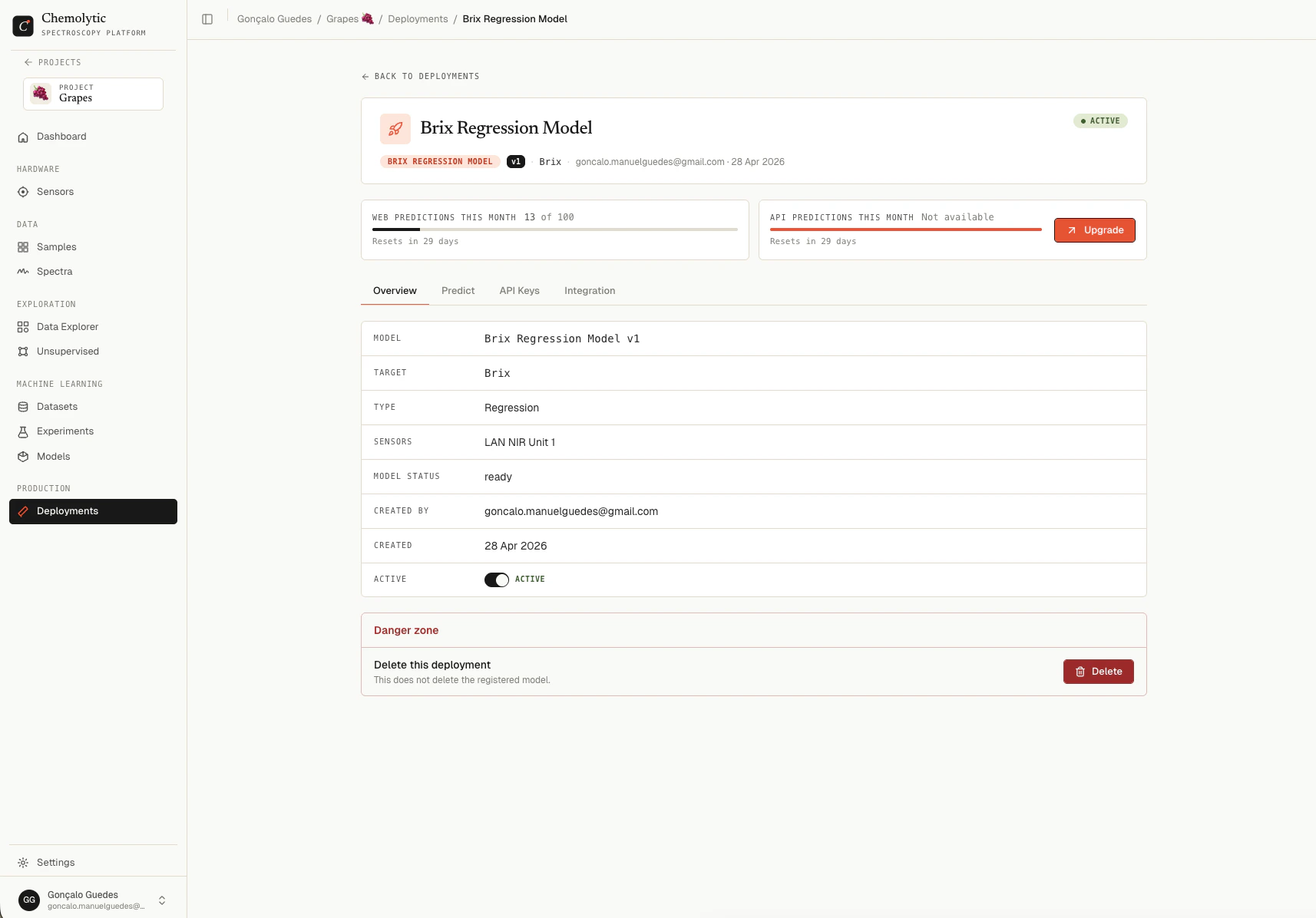
Deployment detail page showing usage quotas at the top and tabs for Overview, Predict, API Keys, Integration

Usage quotas

Two cards at the top showing this month’s prediction usage:
QuotaWhat it counts
Web predictions this monthPredictions submitted via the Predict tab
API predictions this monthPredictions submitted via the API
Each card shows used / limit and the date when the quota resets.

Tabs

TabPurpose
OverviewMetadata table, active toggle, danger zone with delete button
PredictWeb UI for uploading spectra and getting predictions back
API KeysManage keys for programmatic access
IntegrationCode samples (Python, JavaScript, cURL) for calling the API
See dedicated pages for Web predictions, API predictions, and API keys.

Deleting a deployment

In the Overview tab, scroll to the danger zone and click Delete.
Deleting a deployment is permanent. All linked API keys are revoked automatically. Prediction logs are kept for the 90-day retention window. The underlying registered model is not deleted.
A confirmation dialog asks before anything is removed.

Plan limits

Your plan limits:
LimitDescription
max_active_deploymentsTotal number of deployments that can be active simultaneously
max_webapp_predictions_monthWeb UI predictions allowed per month
max_api_predictions_monthAPI predictions allowed per month
allow_api_predictWhether the API endpoint is callable at all (Pro and above)
Quotas reset at the start of each billing period.

Tips

Use one deployment per use case. A deployment is a stable contract: API keys, integration code, and usage history all hang off it. Don’t reuse one deployment for multiple workflows; create separate ones.
Deactivate when not in use. If you’ve reached your active deployment limit but still want to keep older deployments around for reference or quick reactivation, deactivate them instead of deleting.