Datasets are immutable, but data evolves. You collect more samples, fix bad property values, or remove outliers. Versioning lets you create a fresh snapshot as a child of the original, keeping the lineage explicit.
Why versioning
Without versioning, you’d either have to:
- Live with a stale dataset (and stale models trained on it), or
- Create a brand new dataset every time, losing the link to the original
With versioning, you can:
- Train a new model on updated data
- Compare the new model’s metrics against the old one to confirm the data changes helped
- Point auditors to the exact lineage of training data behind a deployed model
Creating a new version
There are two places to start a new version:
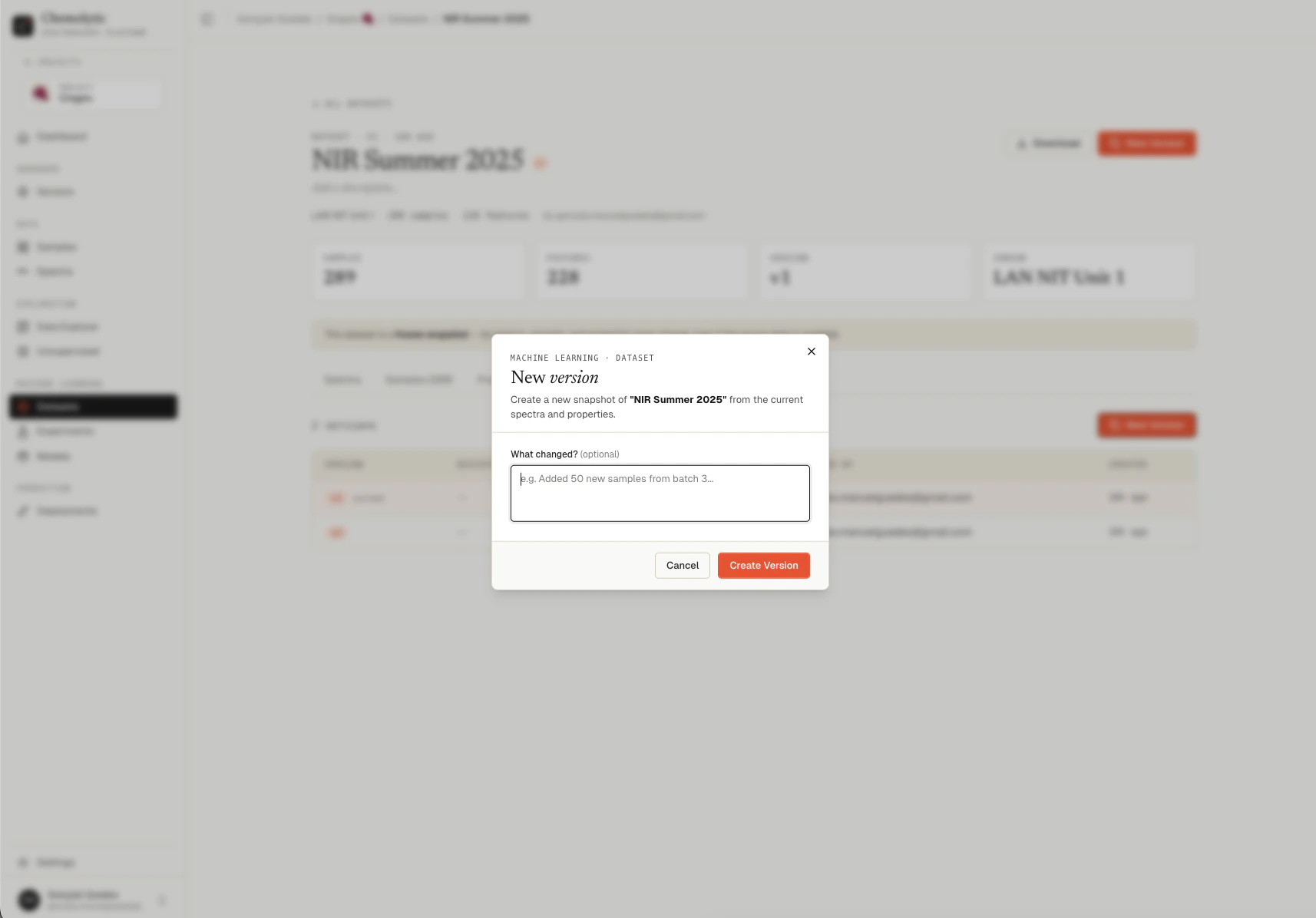
A small dialog opens.
The only field is What changed? (optional). Use it to record a brief explanation:
- “Added 50 new samples from batch 3”
- “Removed 12 outliers identified by PCA”
- “Fixed Brix values for samples 17-22 (data entry error)”
Click Create Version. A new dataset row appears with the next version number (v2, v3, etc.) and the same name as the parent. The new snapshot captures whatever spectra and property values are currently active.
What carries over and what doesn’t
Browsing versions
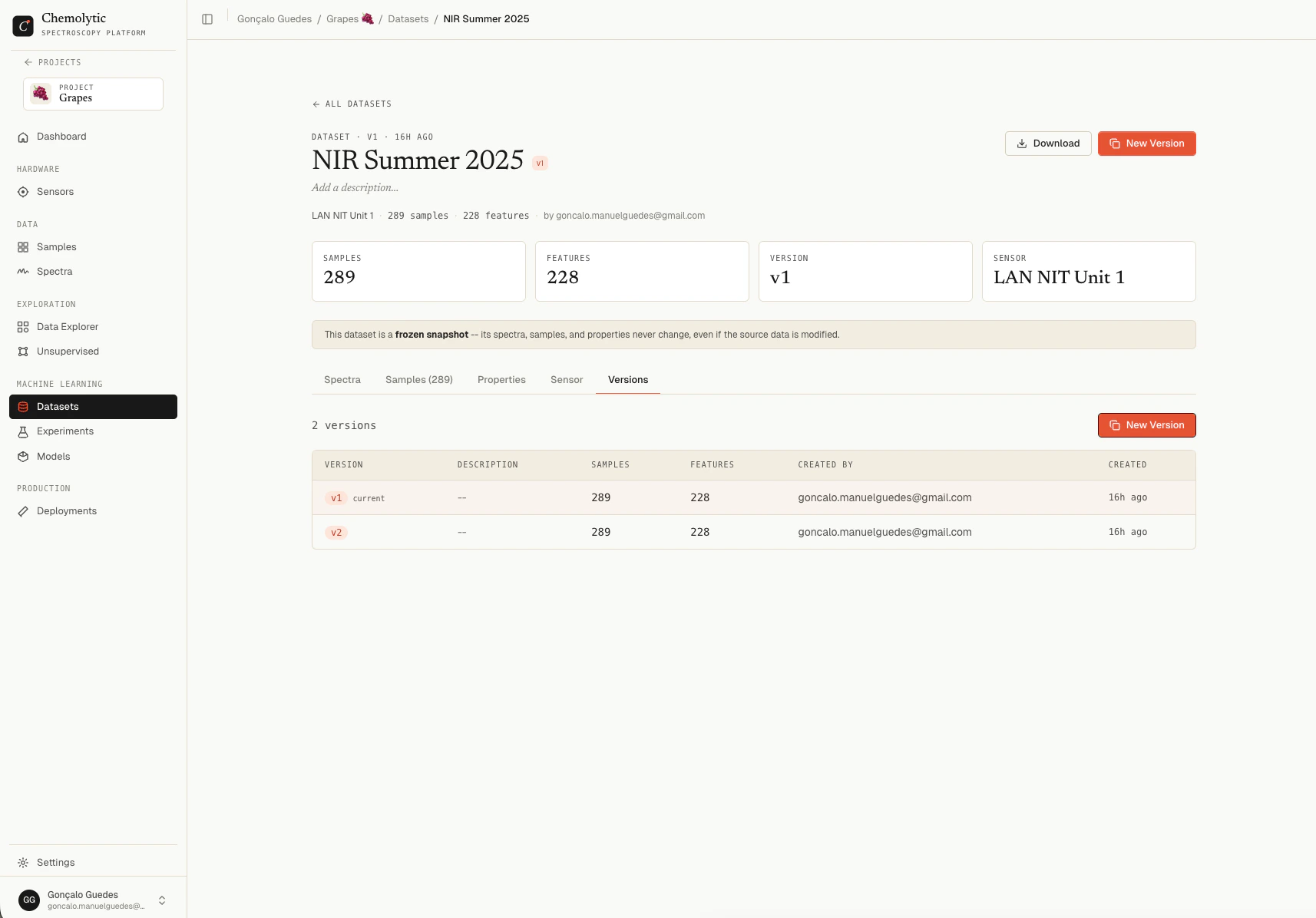
The Versions tab on any dataset detail page lists every version of the dataset, including ancestors and descendants. Click any version to open it.
The current version is highlighted in the table.
Plan limits
Your plan limits the number of versions per dataset (max_dataset_versions). When you reach the limit, the New Version button is disabled and shows the limit message.
To free up version slots:
- Archive an old version (it still counts toward the limit but is removed from active lists), or
- Delete a version you no longer need
Deleting a version is permanent. Any model trained on that version retains its own copy of what it needs to make predictions, but you lose the ability to inspect the original dataset.
Tips
Always describe what changed. A blank “what changed?” field makes it impossible to reconstruct your data history months later. Treat it like a commit message.
Don’t version on every small change. If you’re iterating fast, just keep editing samples and creating one version at the end. Each version is a permanent record, so use them for milestones, not micro-changes.
Compare versions through experiments. The fastest way to know if a new version is “better” is to train an experiment on each and compare metrics.