
Documentation Index

Fetch the complete documentation index at: https://docs.chemolytic.com/llms.txt

Use this file to discover all available pages before exploring further.

PCA (Principal Component Analysis) is the workhorse of spectroscopy exploration. It rotates your high-dimensional spectra into a new set of axes called principal components, ordered by how much variance they explain. PC1 is the direction of largest variance, PC2 the next largest (orthogonal to PC1), and so on. PCA is useful for:
  • Spotting outliers before training a model
  • Visualizing whether your samples form natural groups
  • Reducing dimensionality for downstream methods (e.g., feeding into K-Means)
  • Understanding which wavelengths matter most via loadings

Configuring a PCA run

In the Configure run card on the analysis detail page, select PCA.
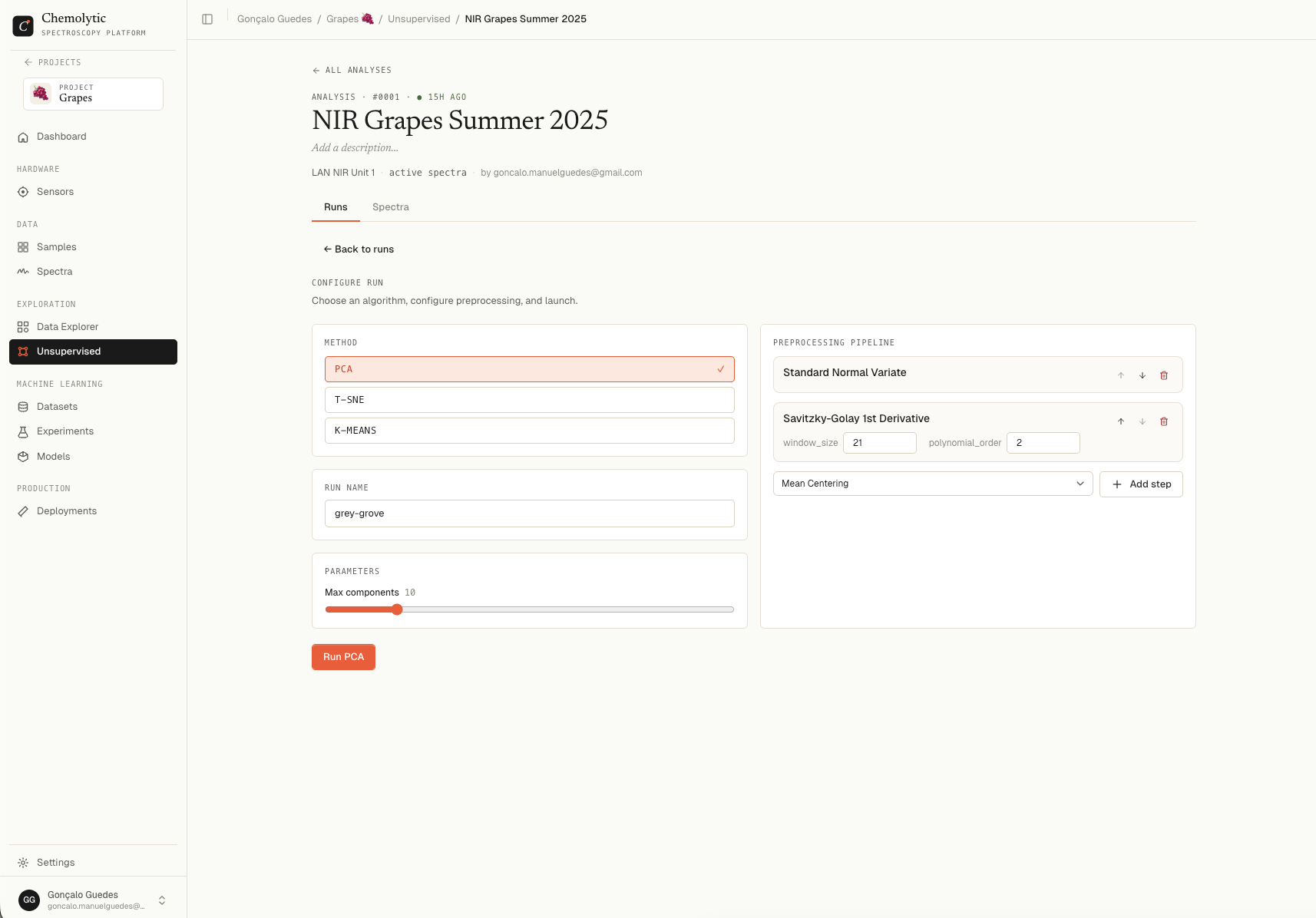
PCA configuration showing method selection, run name input, and max components slider

Parameters

ParameterDefaultRangeDescription
Max components102 to 50The maximum number of principal components to compute. Higher = more detail, slower.
The actual “best” number of components is chosen automatically based on the cumulative variance explained.

Run name

Auto-generated as a friendly two-word name (e.g., “bold-cloud”). Override it with anything descriptive. Click Launch run to start. The run appears in the runs list with status “Queueing”, then “Analysing”, then “Done” when complete.

Reading the results

Click a completed run to open its detail page.
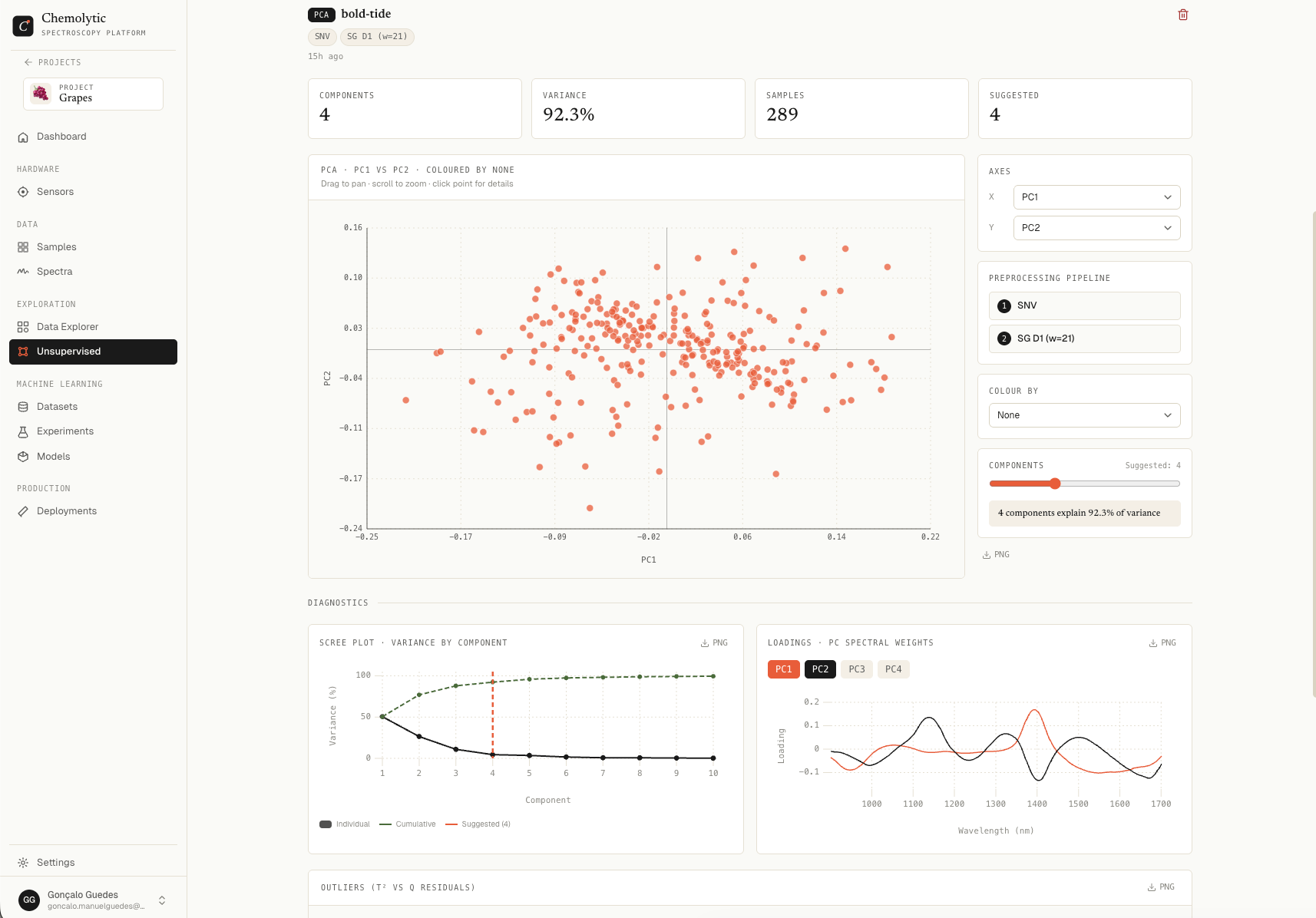
PCA run detail showing scree plot, scores plot, loadings, and outlier detection

Dimensionality (scree plot)

Bar chart showing the explained variance of each component, with a line for the cumulative variance. The text below the chart shows the suggested number of components and the cumulative variance at that count (e.g., “Suggested: 4 components · 92.3% variance”).
Look for the “elbow” in the bar chart. Components past the elbow add little variance and probably represent noise. The suggested number tries to capture the elbow automatically.

Scores plot

Scatter plot of your samples projected onto the principal components. Each point is one spectrum.
ControlDescription
X axisPick which PC is on the horizontal axis (PC1 by default)
Y axisPick which PC is on the vertical axis (PC2 by default)
Colour byColor points by a property to spot correlations
When you colour by a property:
  • Continuous properties produce a blue → red gradient (low to high)
  • Categorical properties use a fixed palette (one color per category)
If samples cluster in the scores plot when coloured by a property, that property is correlated with spectral variance. This is a strong signal that you can build a model for it.

Loadings plot

Line chart showing how much each wavelength contributes to a given component. Pick which PC to view from the dropdown. Peaks and troughs in the loadings indicate the wavelengths that drive that component’s variance. If PC1’s loadings have a strong peak at, say, 1450 nm, that wavelength is dominant in the largest source of variance in your data.

Outlier detection (T² vs Q residuals)

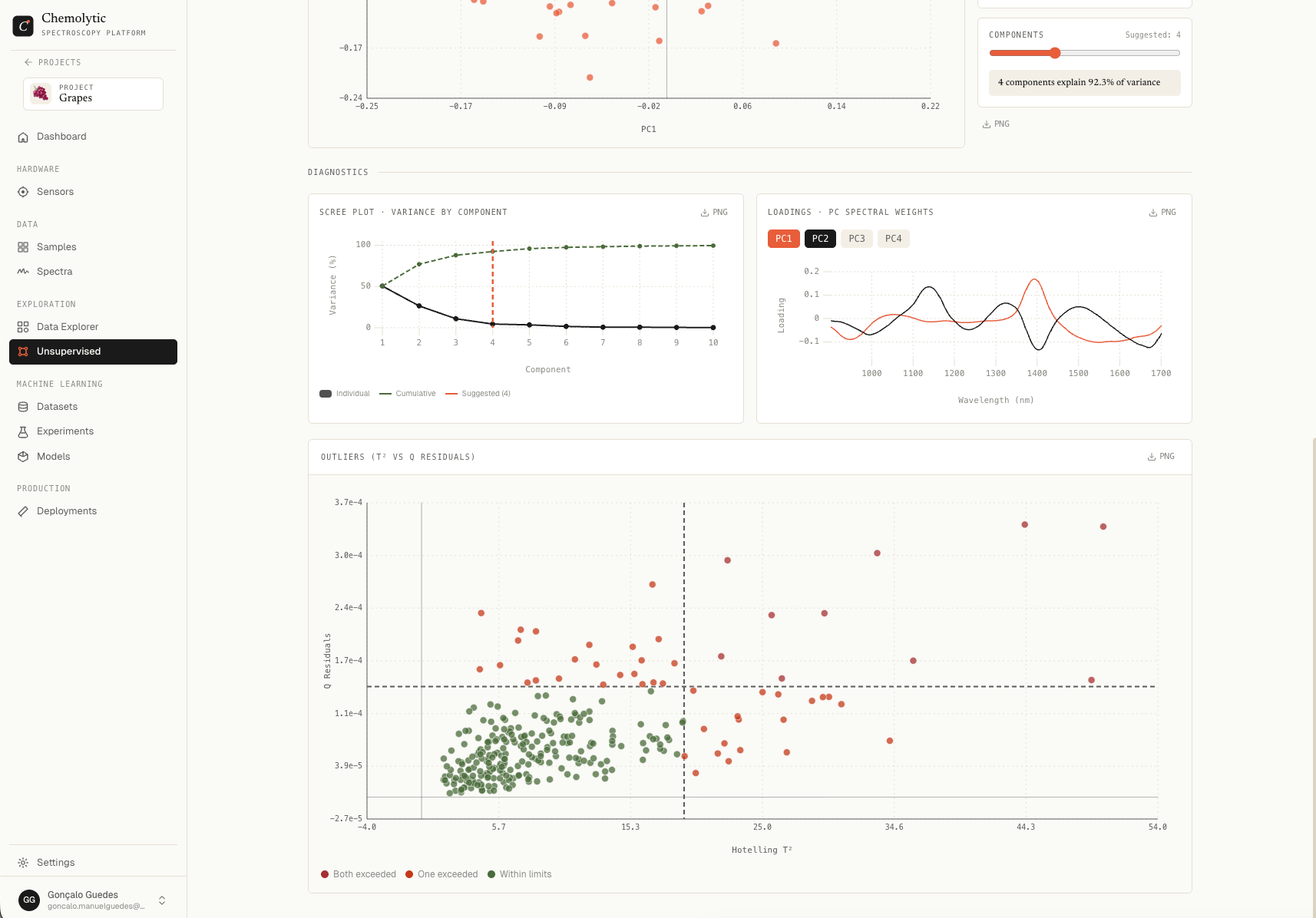
Scatter plot with Hotelling T² on the x-axis and Q residuals on the y-axis. Each point is a spectrum. Two threshold lines (red) mark statistical limits.
RegionMeaning
Inside both thresholdsNormal sample
Above Q thresholdSpectrum has unusual features the model didn’t capture
Right of T² thresholdSpectrum is at the extremes of the modelled space
Above bothStrong outlier candidate
PCA run detail showing scree plot, scores plot, loadings, and outlier detection
Points are coloured:
  • Green: inside both thresholds
  • Orange: one threshold exceeded
  • Red: both thresholds exceeded
The badge above the chart shows the count of outliers vs total samples.
Click an outlier to identify which sample it is. Investigate the original spectrum and the lab notes for that sample. Common causes: contaminated sample, instrument error during measurement, wrong sample loaded by mistake.

Iterating

PCA results often suggest changes:
ObservationWhat to try next
Strong outliersArchive those spectra, run again
First component captures most varianceTry a stronger preprocessing (SNV, derivatives)
No structure visible in scoresAdd more samples or check property coverage
Property gradient visibleYou’re ready to try an experiment
Each new run is saved alongside the others in the same analysis. Use Comparing runs to put multiple runs side by side.