> ## Documentation Index
> Fetch the complete documentation index at: https://docs.chemolytic.com/llms.txt
> Use this file to discover all available pages before exploring further.
# Managing samples
> Add, edit, and delete samples manually in your project.
Go to **Samples** in the project sidebar to see all samples.
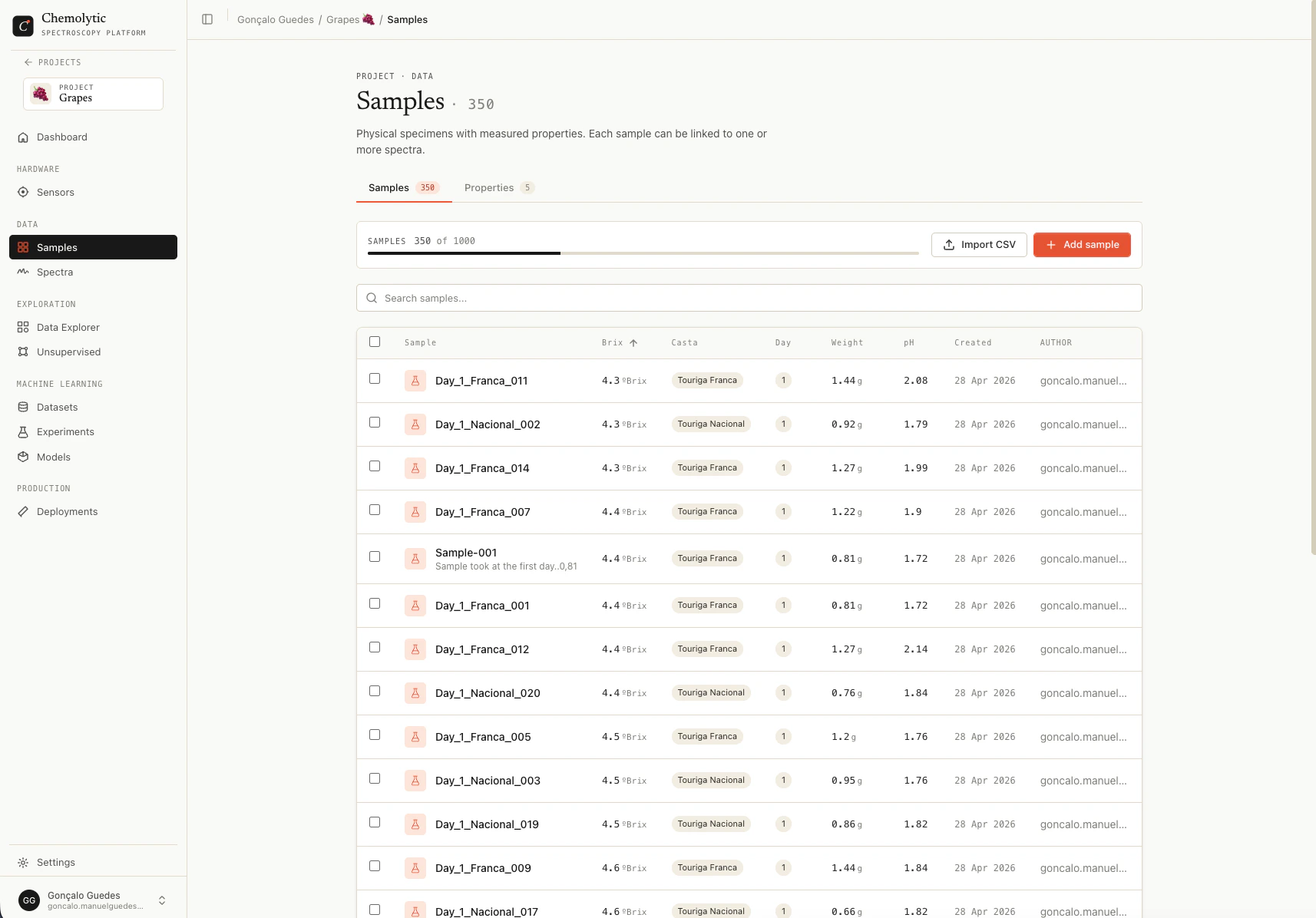 ## Samples table
The table shows one row per sample. Columns:
| Column | Description |
| ----------------------- | ------------------------------------------------------------------------------------------------------------------------------------------------------ |
| **Sample** | Name and description |
| **\[Property columns]** | One column per property defined in the project. Continuous shows the value with its unit. Categorical shows a colored pill. A dash means no value set. |
| **Created** | Date the sample was created |
| **Author** | User who created the sample |
Click any column header to sort. Use the search box to filter by name or description. Page size can be set to 25, 50, or 100 per page.
## Adding a sample manually
Click **Add sample** to open the create dialog.
## Samples table
The table shows one row per sample. Columns:
| Column | Description |
| ----------------------- | ------------------------------------------------------------------------------------------------------------------------------------------------------ |
| **Sample** | Name and description |
| **\[Property columns]** | One column per property defined in the project. Continuous shows the value with its unit. Categorical shows a colored pill. A dash means no value set. |
| **Created** | Date the sample was created |
| **Author** | User who created the sample |
Click any column header to sort. Use the search box to filter by name or description. Page size can be set to 25, 50, or 100 per page.
## Adding a sample manually
Click **Add sample** to open the create dialog.
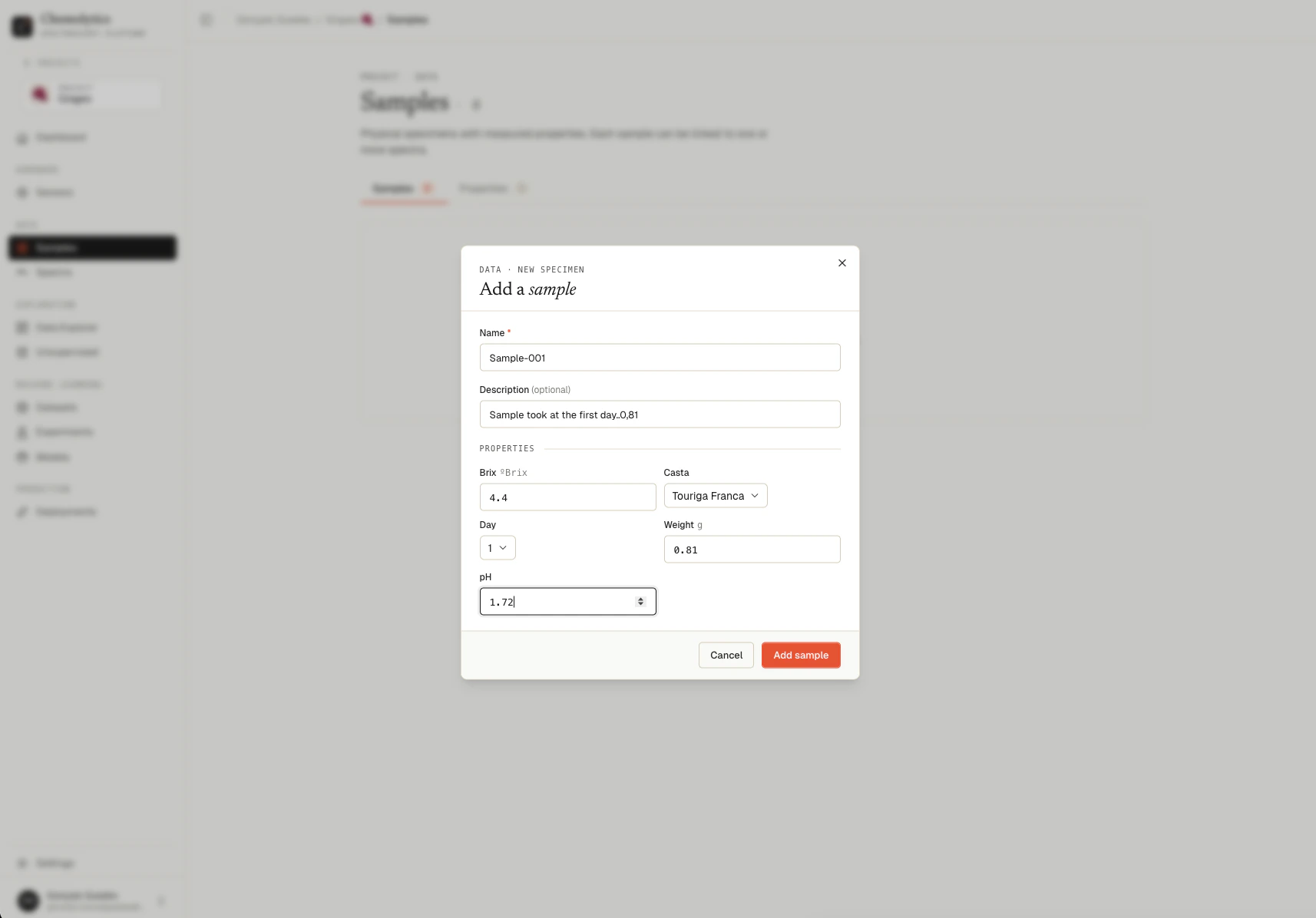 ### Fields
| Field | Required | Notes |
| ------------------- | -------- | ------------------------------------------------------------------- |
| **Name** | Yes | Unique within the project. Max 200 characters. |
| **Description** | No | Free-text. Useful for batch numbers, harvest dates, lot IDs. |
| **Property values** | No | One input per property defined in the project. Leave empty to skip. |
### Continuous values
Enter a number. Decimals use a dot (e.g., `12.5`). Anything not parseable as a number is rejected with: "Value '{value}' is not a valid number for continuous property '{name}'."
### Categorical values
Select a category from the dropdown. The dropdown shows the categories you defined for that property, plus a "not set" placeholder.
You can create a sample with **no property values**. This is useful for samples you've only just measured and haven't analyzed yet. You can fill values in later by editing the sample or via CSV import.
## Editing a sample
Click the pencil icon on a sample row. You can change the name, description, and any property values.
Editing a sample's property values via the dialog **replaces all of them**. If you only want to update one value, make sure all the others are still filled in (or use CSV import for bulk updates).
## Deleting a sample
Click the trash icon on a sample row.
### Fields
| Field | Required | Notes |
| ------------------- | -------- | ------------------------------------------------------------------- |
| **Name** | Yes | Unique within the project. Max 200 characters. |
| **Description** | No | Free-text. Useful for batch numbers, harvest dates, lot IDs. |
| **Property values** | No | One input per property defined in the project. Leave empty to skip. |
### Continuous values
Enter a number. Decimals use a dot (e.g., `12.5`). Anything not parseable as a number is rejected with: "Value '{value}' is not a valid number for continuous property '{name}'."
### Categorical values
Select a category from the dropdown. The dropdown shows the categories you defined for that property, plus a "not set" placeholder.
You can create a sample with **no property values**. This is useful for samples you've only just measured and haven't analyzed yet. You can fill values in later by editing the sample or via CSV import.
## Editing a sample
Click the pencil icon on a sample row. You can change the name, description, and any property values.
Editing a sample's property values via the dialog **replaces all of them**. If you only want to update one value, make sure all the others are still filled in (or use CSV import for bulk updates).
## Deleting a sample
Click the trash icon on a sample row.
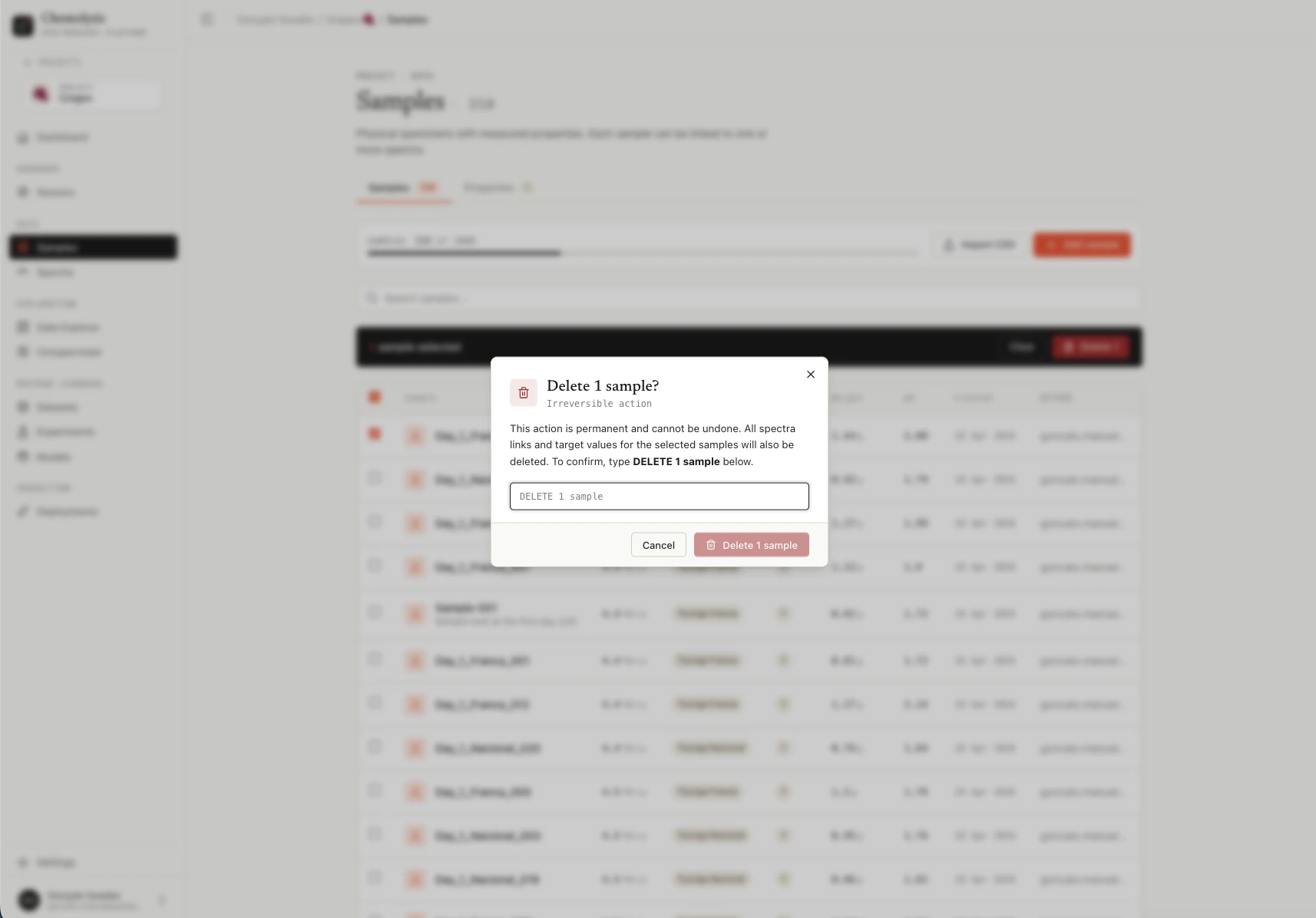 A confirmation dialog appears. Type the sample name to confirm.
Deleting a sample also deletes:
* All its property values (targets)
* All spectra linked to it
This cannot be undone.
## Bulk delete
Select multiple samples using the checkboxes on the left. A toolbar appears at the bottom with the count and a **Delete** button.
A confirmation dialog appears. Type the sample name to confirm.
Deleting a sample also deletes:
* All its property values (targets)
* All spectra linked to it
This cannot be undone.
## Bulk delete
Select multiple samples using the checkboxes on the left. A toolbar appears at the bottom with the count and a **Delete** button.
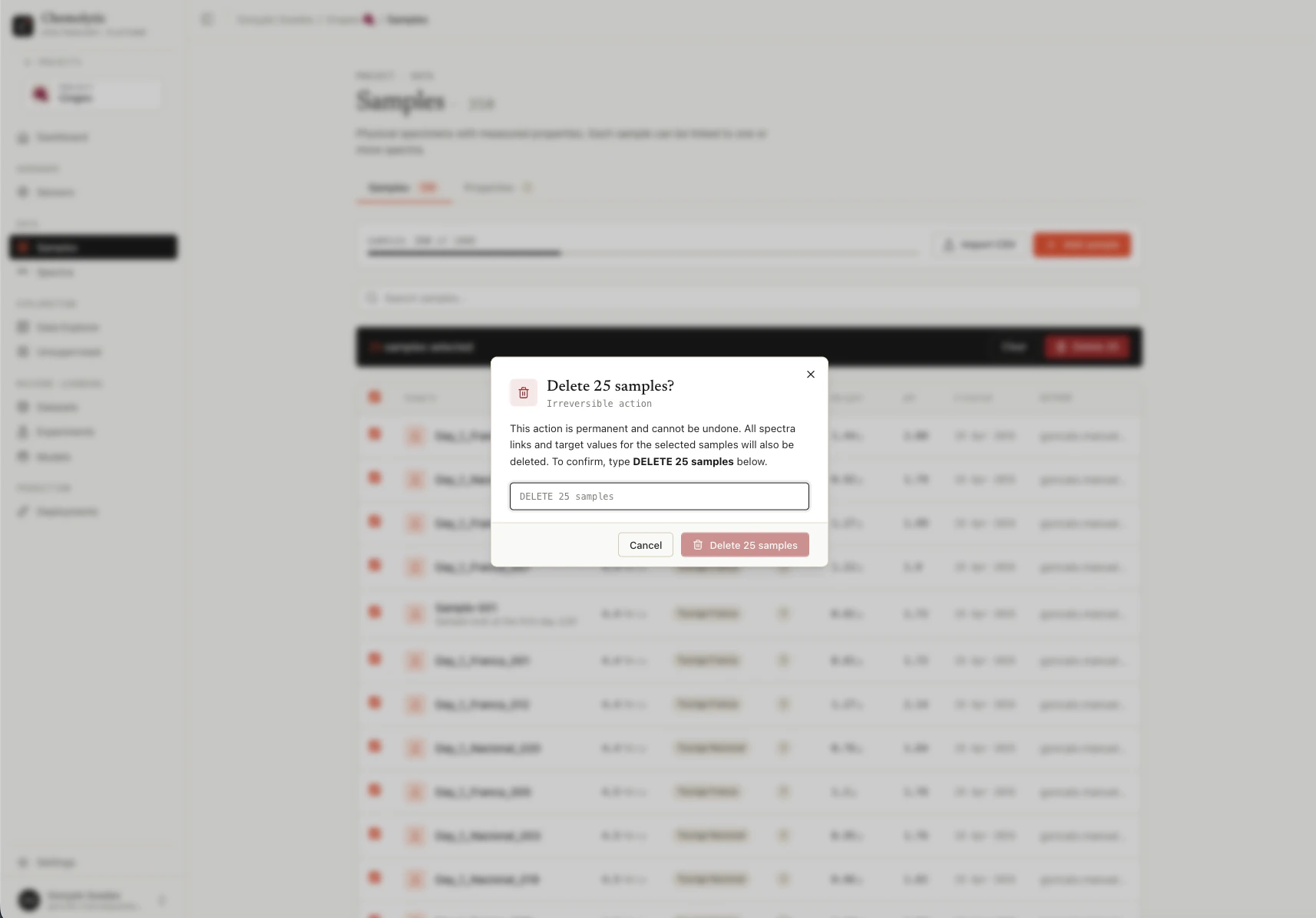 Click **Delete**. A confirmation dialog asks you to type all selected sample names separated by commas before deleting. This prevents accidental mass deletion.
## Plan limits
Your plan limits how many samples you can have per project. The current count and limit are shown at the top of the page. The **Add sample** and **Import CSV** buttons are disabled when you've reached the limit.
## Common errors
Sample names are unique within a project. Use a different name or update the existing sample.
The value you entered cannot be parsed as a number. Check for typos, units mixed with the value, or commas instead of dots for decimals.
The value doesn't match any of the categories defined for this property. Categorical values are case-sensitive and must match exactly.
Click **Delete**. A confirmation dialog asks you to type all selected sample names separated by commas before deleting. This prevents accidental mass deletion.
## Plan limits
Your plan limits how many samples you can have per project. The current count and limit are shown at the top of the page. The **Add sample** and **Import CSV** buttons are disabled when you've reached the limit.
## Common errors
Sample names are unique within a project. Use a different name or update the existing sample.
The value you entered cannot be parsed as a number. Check for typos, units mixed with the value, or commas instead of dots for decimals.
The value doesn't match any of the categories defined for this property. Categorical values are case-sensitive and must match exactly.