> ## Documentation Index
> Fetch the complete documentation index at: https://docs.chemolytic.com/llms.txt
> Use this file to discover all available pages before exploring further.
# Importing samples from CSV
> Bulk-import samples and property values from a CSV file. Covers format, edge cases, and errors.
If you have many samples to add or many property values to update, importing from CSV is much faster than the manual dialog. Click **Import CSV** on the Samples page.
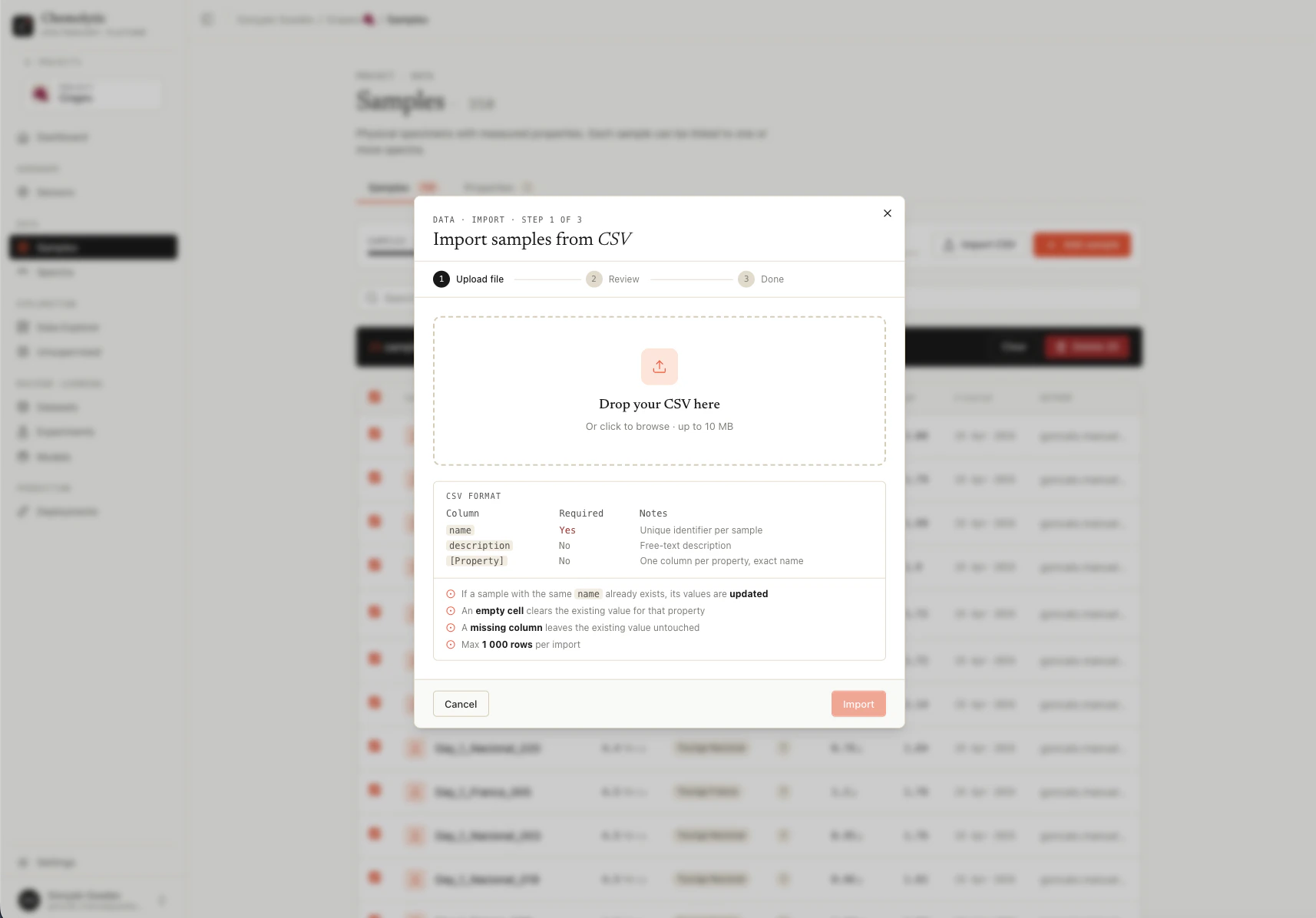 You must define your **properties first** before importing. CSV columns are matched against existing property names, and unknown columns cause the import to fail.
## CSV format
### File requirements
| Requirement | Value |
| ------------ | -------------- |
| Format | `.csv` only |
| Encoding | UTF-8 |
| Maximum rows | 1,000 per file |
| Header row | Required |
### Required columns
| Column | Notes |
| ------ | ---------------------------------------------- |
| `name` | The unique sample name. Required on every row. |
### Optional columns
| Column | Notes |
| ------------- | ------------------------------------------------------------------------------------ |
| `description` | Free-text description. Replaces existing description if the sample is being updated. |
### Property columns
Every other column header must match the **exact name** of a property defined in your project (case-sensitive). The values in those columns become the sample targets.
### Example
For a project with properties **Brix** (continuous), **pH** (continuous), and **Variety** (categorical with categories "Arabica", "Robusta"):
```csv theme={null}
name,description,Brix,pH,Variety
Sample-001,Harvest A batch,18.5,3.42,Arabica
Sample-002,Harvest B batch,19.2,3.51,Arabica
Sample-003,Test batch,21.0,3.38,Robusta
Sample-004,,17.8,,Arabica
```
Notes on this example:
* Sample-004 has no description (empty cell)
* Sample-004 has no pH value (empty cell removes any existing pH target)
* All three samples have all required columns
## Upsert behavior
CSV import is an **upsert**, meaning it creates new samples and updates existing ones in the same operation.
### When the sample name does not exist
A new sample is created using the row's name, description, and property values.
### When the sample name already exists
The existing sample is updated:
* **Description** is replaced with the new value (even if blank)
* For each property column **present in the CSV**:
* If the cell has a value, the property target is created or updated
* If the cell is empty, the existing property target is **deleted**
* Property targets for properties **not in the CSV** are left untouched
This is the most important rule to understand. The CSV scopes which properties are managed by which columns are present.
### Examples
**Scenario:** Project has properties Brix, pH, Variety. Sample-001 already exists with Brix=18.5, pH=3.42, Variety=Arabica.
| CSV content | Result |
| -------------------------------------------- | ---------------------------------------------------------------------------- |
| `name,Brix\nSample-001,19.0` | Brix updated to 19.0. pH and Variety left as-is. |
| `name,Brix,pH\nSample-001,19.0,` | Brix updated to 19.0. **pH target removed** (empty cell). Variety untouched. |
| `name,Brix,pH,Variety\nSample-001,19.0,3.5,` | Brix updated, pH updated, **Variety target removed**. |
| `name,description\nSample-001,New notes` | Description replaced. All property targets untouched. |
To **fully reset** a sample's properties, include all property columns in the CSV with empty cells for the ones you want to clear.
## Validation
The whole CSV is validated before any change is saved. If any row has any error, **nothing is imported**.
### Empty name
```
Line 5: Name is required.
```
Every row must have a name.
### Unknown column
```
Unknown columns: weight, color. Define them as sample properties first.
```
Every column other than `name` and `description` must match an existing property name. Define missing properties first, then re-import.
### Invalid continuous value
```
Line 12 (Sample-042): Value '18,5' is not a valid number for property 'Brix'.
```
Continuous values must be parseable as a number. Common causes:
* Comma instead of dot for decimals (use `18.5`, not `18,5`)
* Units mixed with the value (use `18.5`, not `18.5 °Bx`)
* Stray spaces or non-numeric characters
### Invalid categorical value
```
Line 7 (Sample-007): Value 'arabica' is not in categories for 'Variety': [Arabica, Robusta].
```
Categorical values must match one of the property's categories **exactly**. Categories are case-sensitive.
### Other errors
| Error | Cause |
| --------------------------------------- | --------------------------------------------------------------------- |
| `Only .csv files are accepted.` | The file extension is not `.csv` |
| `File must be UTF-8 encoded.` | The file has non-UTF-8 characters (e.g., Latin-1 encoding from Excel) |
| `CSV exceeds the maximum of 1000 rows.` | Split your file into chunks of 1,000 rows or fewer |
| `CSV must have a 'name' column.` | The header row does not include `name` |
## Import flow
Opens the import dialog.
Drag and drop, or click to browse. Only `.csv` files are accepted.
Chemolytic validates the file before saving anything. If errors are found, you see a list of them by line number with the exact error message. Fix the file and re-import.
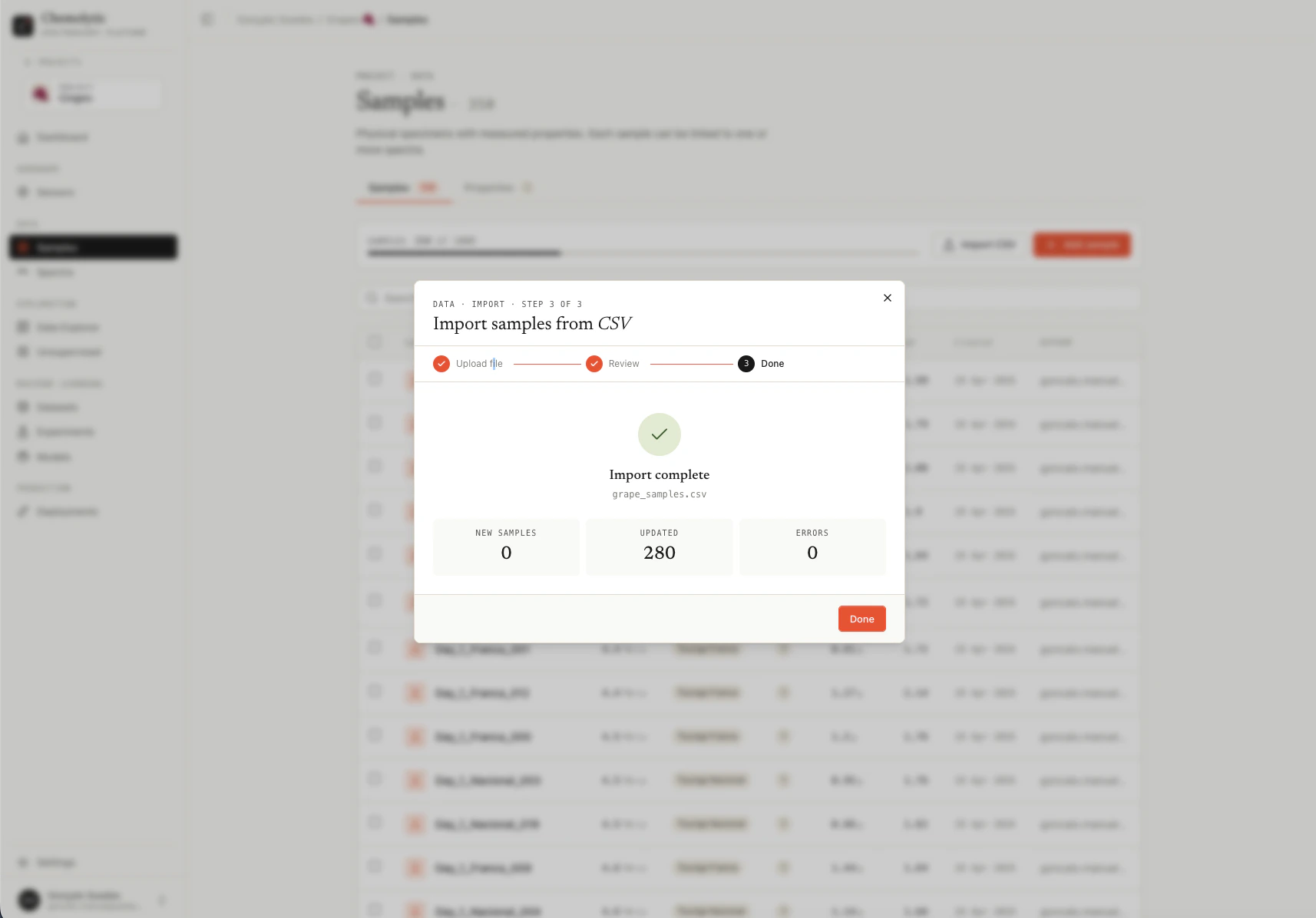
On success, you see counts: New samples (created), Updated (existing), Errors (always 0 on a successful import).
You must define your **properties first** before importing. CSV columns are matched against existing property names, and unknown columns cause the import to fail.
## CSV format
### File requirements
| Requirement | Value |
| ------------ | -------------- |
| Format | `.csv` only |
| Encoding | UTF-8 |
| Maximum rows | 1,000 per file |
| Header row | Required |
### Required columns
| Column | Notes |
| ------ | ---------------------------------------------- |
| `name` | The unique sample name. Required on every row. |
### Optional columns
| Column | Notes |
| ------------- | ------------------------------------------------------------------------------------ |
| `description` | Free-text description. Replaces existing description if the sample is being updated. |
### Property columns
Every other column header must match the **exact name** of a property defined in your project (case-sensitive). The values in those columns become the sample targets.
### Example
For a project with properties **Brix** (continuous), **pH** (continuous), and **Variety** (categorical with categories "Arabica", "Robusta"):
```csv theme={null}
name,description,Brix,pH,Variety
Sample-001,Harvest A batch,18.5,3.42,Arabica
Sample-002,Harvest B batch,19.2,3.51,Arabica
Sample-003,Test batch,21.0,3.38,Robusta
Sample-004,,17.8,,Arabica
```
Notes on this example:
* Sample-004 has no description (empty cell)
* Sample-004 has no pH value (empty cell removes any existing pH target)
* All three samples have all required columns
## Upsert behavior
CSV import is an **upsert**, meaning it creates new samples and updates existing ones in the same operation.
### When the sample name does not exist
A new sample is created using the row's name, description, and property values.
### When the sample name already exists
The existing sample is updated:
* **Description** is replaced with the new value (even if blank)
* For each property column **present in the CSV**:
* If the cell has a value, the property target is created or updated
* If the cell is empty, the existing property target is **deleted**
* Property targets for properties **not in the CSV** are left untouched
This is the most important rule to understand. The CSV scopes which properties are managed by which columns are present.
### Examples
**Scenario:** Project has properties Brix, pH, Variety. Sample-001 already exists with Brix=18.5, pH=3.42, Variety=Arabica.
| CSV content | Result |
| -------------------------------------------- | ---------------------------------------------------------------------------- |
| `name,Brix\nSample-001,19.0` | Brix updated to 19.0. pH and Variety left as-is. |
| `name,Brix,pH\nSample-001,19.0,` | Brix updated to 19.0. **pH target removed** (empty cell). Variety untouched. |
| `name,Brix,pH,Variety\nSample-001,19.0,3.5,` | Brix updated, pH updated, **Variety target removed**. |
| `name,description\nSample-001,New notes` | Description replaced. All property targets untouched. |
To **fully reset** a sample's properties, include all property columns in the CSV with empty cells for the ones you want to clear.
## Validation
The whole CSV is validated before any change is saved. If any row has any error, **nothing is imported**.
### Empty name
```
Line 5: Name is required.
```
Every row must have a name.
### Unknown column
```
Unknown columns: weight, color. Define them as sample properties first.
```
Every column other than `name` and `description` must match an existing property name. Define missing properties first, then re-import.
### Invalid continuous value
```
Line 12 (Sample-042): Value '18,5' is not a valid number for property 'Brix'.
```
Continuous values must be parseable as a number. Common causes:
* Comma instead of dot for decimals (use `18.5`, not `18,5`)
* Units mixed with the value (use `18.5`, not `18.5 °Bx`)
* Stray spaces or non-numeric characters
### Invalid categorical value
```
Line 7 (Sample-007): Value 'arabica' is not in categories for 'Variety': [Arabica, Robusta].
```
Categorical values must match one of the property's categories **exactly**. Categories are case-sensitive.
### Other errors
| Error | Cause |
| --------------------------------------- | --------------------------------------------------------------------- |
| `Only .csv files are accepted.` | The file extension is not `.csv` |
| `File must be UTF-8 encoded.` | The file has non-UTF-8 characters (e.g., Latin-1 encoding from Excel) |
| `CSV exceeds the maximum of 1000 rows.` | Split your file into chunks of 1,000 rows or fewer |
| `CSV must have a 'name' column.` | The header row does not include `name` |
## Import flow
Opens the import dialog.
Drag and drop, or click to browse. Only `.csv` files are accepted.
Chemolytic validates the file before saving anything. If errors are found, you see a list of them by line number with the exact error message. Fix the file and re-import.
On success, you see counts: New samples (created), Updated (existing), Errors (always 0 on a successful import).
 ## Tips
**Re-importing the same file is safe.** Existing samples are matched by name and updated in place. Use this to iterate on your data.
**Use Excel carefully.** Excel can silently change number formats, encodings, and date columns. Always export as **CSV UTF-8** (not "CSV" which may be Latin-1 on Windows).
**Keep a master CSV file.** Treat it as the source of truth for your samples. Make changes there, re-import to update Chemolytic.
## Plan limits
The plan limit on samples per project is checked when importing. If your CSV would exceed the limit, the import is rejected before any change is made.
## Tips
**Re-importing the same file is safe.** Existing samples are matched by name and updated in place. Use this to iterate on your data.
**Use Excel carefully.** Excel can silently change number formats, encodings, and date columns. Always export as **CSV UTF-8** (not "CSV" which may be Latin-1 on Windows).
**Keep a master CSV file.** Treat it as the source of truth for your samples. Make changes there, re-import to update Chemolytic.
## Plan limits
The plan limit on samples per project is checked when importing. If your CSV would exceed the limit, the import is rejected before any change is made.