> ## Documentation Index
> Fetch the complete documentation index at: https://docs.chemolytic.com/llms.txt
> Use this file to discover all available pages before exploring further.
# Profile settings
> Manage your account details, email, password, and account deletion.
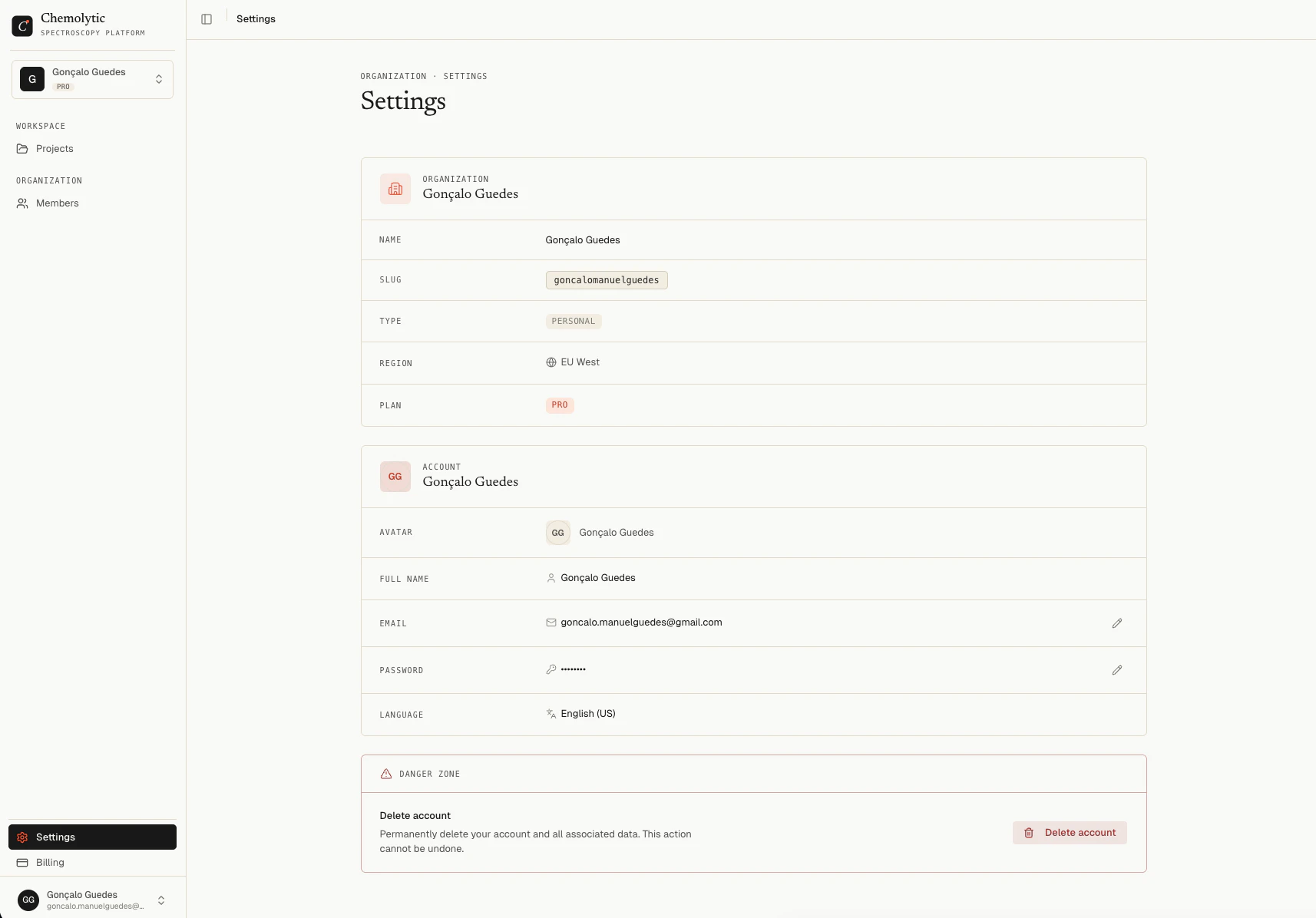
Access your profile settings by clicking your name in the bottom-left corner of the sidebar and going to **Settings**.
 ## Organization info
The top section shows read-only information about your current organization:
| Field | Description |
| ---------- | --------------------------------------------------------- |
| **Name** | Your organization's display name |
| **Slug** | The URL-safe identifier used in the app address |
| **Type** | Personal or Team |
| **Region** | EU West (set at creation, cannot be changed) |
| **Plan** | Your current subscription tier (Free, Pro, or Enterprise) |
## Account
### Change your email
Click the edit icon next to your email address. A dialog opens where you can enter a new email. A verification link is sent to the new address. The change takes effect after you verify it.
### Change your password
Click the edit icon next to the password field. Enter your current password, then your new password (minimum 8 characters), and confirm it.
## Danger zone
### Delete account
Deleting your account is permanent. All your data, projects, and models are removed and cannot be recovered.
Click **Delete account** at the bottom of the page. A confirmation dialog appears. You must confirm the action before anything is deleted.
### Delete organization
The **Delete organization** button is only available for Team organizations, not Personal ones. Personal organizations cannot be deleted because they are tied to your account.
Only the organization **Owner** can delete it.
## Organization info
The top section shows read-only information about your current organization:
| Field | Description |
| ---------- | --------------------------------------------------------- |
| **Name** | Your organization's display name |
| **Slug** | The URL-safe identifier used in the app address |
| **Type** | Personal or Team |
| **Region** | EU West (set at creation, cannot be changed) |
| **Plan** | Your current subscription tier (Free, Pro, or Enterprise) |
## Account
### Change your email
Click the edit icon next to your email address. A dialog opens where you can enter a new email. A verification link is sent to the new address. The change takes effect after you verify it.
### Change your password
Click the edit icon next to the password field. Enter your current password, then your new password (minimum 8 characters), and confirm it.
## Danger zone
### Delete account
Deleting your account is permanent. All your data, projects, and models are removed and cannot be recovered.
Click **Delete account** at the bottom of the page. A confirmation dialog appears. You must confirm the action before anything is deleted.
### Delete organization
The **Delete organization** button is only available for Team organizations, not Personal ones. Personal organizations cannot be deleted because they are tied to your account.
Only the organization **Owner** can delete it.