> ## Documentation Index
> Fetch the complete documentation index at: https://docs.chemolytic.com/llms.txt
> Use this file to discover all available pages before exploring further.
# Members and roles
> Invite people to your organization, assign roles, and manage access at the project level.
Chemolytic has two levels of membership: **organization** and **project**. Each has its own set of roles and permissions.
## Organization roles
Go to **Members** in the left sidebar to manage your organization's members.
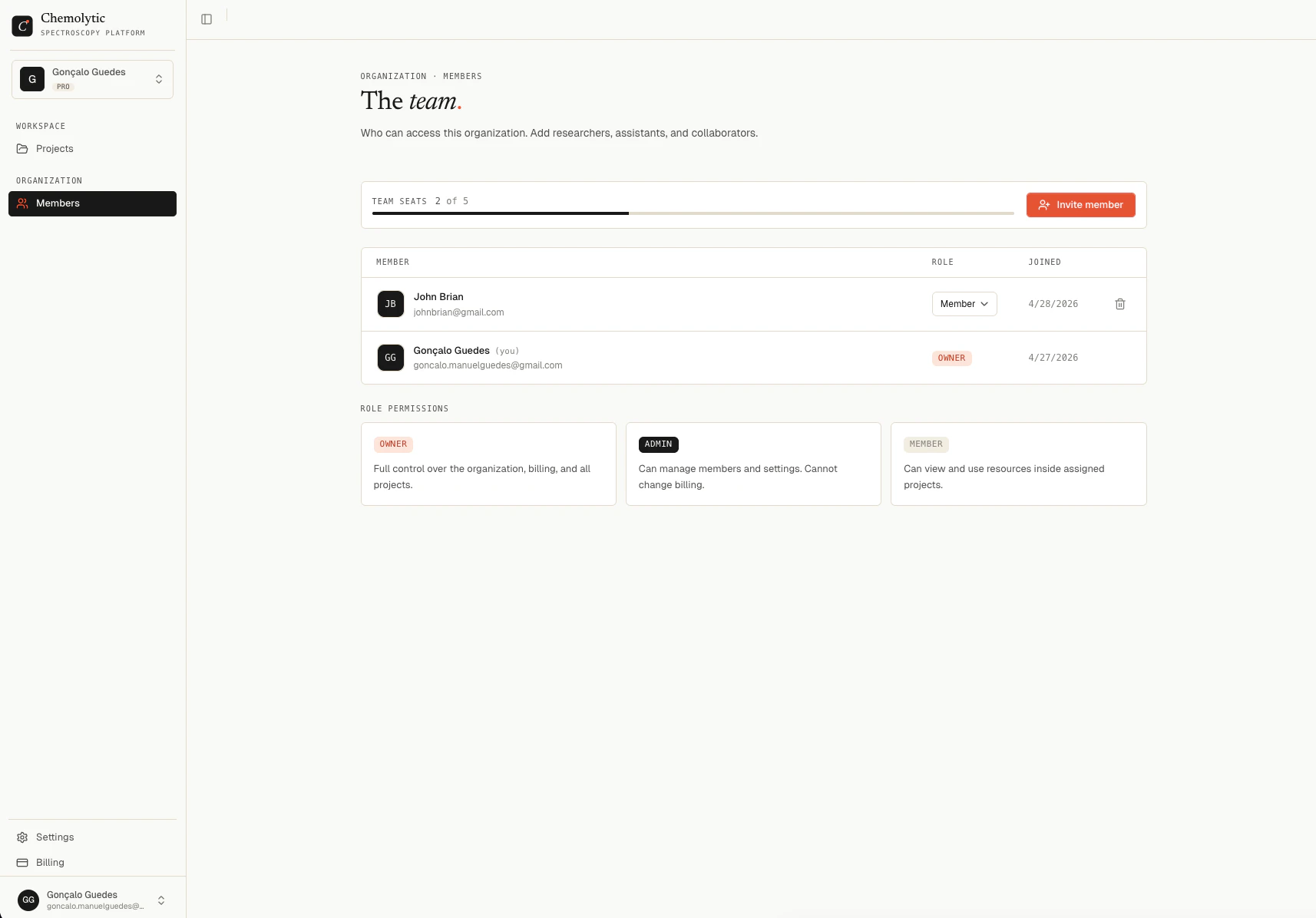 | Role | What they can do |
| ---------- | ------------------------------------------------------------- |
| **Owner** | Full control over the organization, billing, and all projects |
| **Admin** | Can manage members and settings. Cannot change billing. |
| **Member** | Can view and use resources inside assigned projects |
### Inviting a member
You need to be **Admin** or **Owner** to invite members.
1. Click **Invite member** in the top right
2. Enter the person's email address
3. Select a role (Admin or Member)
4. Click **Send invite**
The person receives an email with a link to join. If they don't have an account yet, they'll be asked to create one first.
Your plan limits how many members you can have. Free: 1 member, Pro: 3 members, Enterprise: 100 members. If you've reached the limit, you need to upgrade before inviting more.
### Changing a member's role
Only the **Owner** can change roles. Click the role dropdown next to a member's name and select the new role.
The Owner role itself cannot be changed or transferred through this interface.
### Removing a member
**Admin** and **Owner** can remove members using the trash icon on the right.
Rules:
* You cannot remove yourself
* The Owner cannot be removed from the organization
***
## Project roles
Each project has its own membership. Being a member of an organization does not automatically give you access to every project inside it.
| Role | What they can do |
| ---------- | ------------------------------------------------------------- |
| **Owner** | Full control over the organization, billing, and all projects |
| **Admin** | Can manage members and settings. Cannot change billing. |
| **Member** | Can view and use resources inside assigned projects |
### Inviting a member
You need to be **Admin** or **Owner** to invite members.
1. Click **Invite member** in the top right
2. Enter the person's email address
3. Select a role (Admin or Member)
4. Click **Send invite**
The person receives an email with a link to join. If they don't have an account yet, they'll be asked to create one first.
Your plan limits how many members you can have. Free: 1 member, Pro: 3 members, Enterprise: 100 members. If you've reached the limit, you need to upgrade before inviting more.
### Changing a member's role
Only the **Owner** can change roles. Click the role dropdown next to a member's name and select the new role.
The Owner role itself cannot be changed or transferred through this interface.
### Removing a member
**Admin** and **Owner** can remove members using the trash icon on the right.
Rules:
* You cannot remove yourself
* The Owner cannot be removed from the organization
***
## Project roles
Each project has its own membership. Being a member of an organization does not automatically give you access to every project inside it.
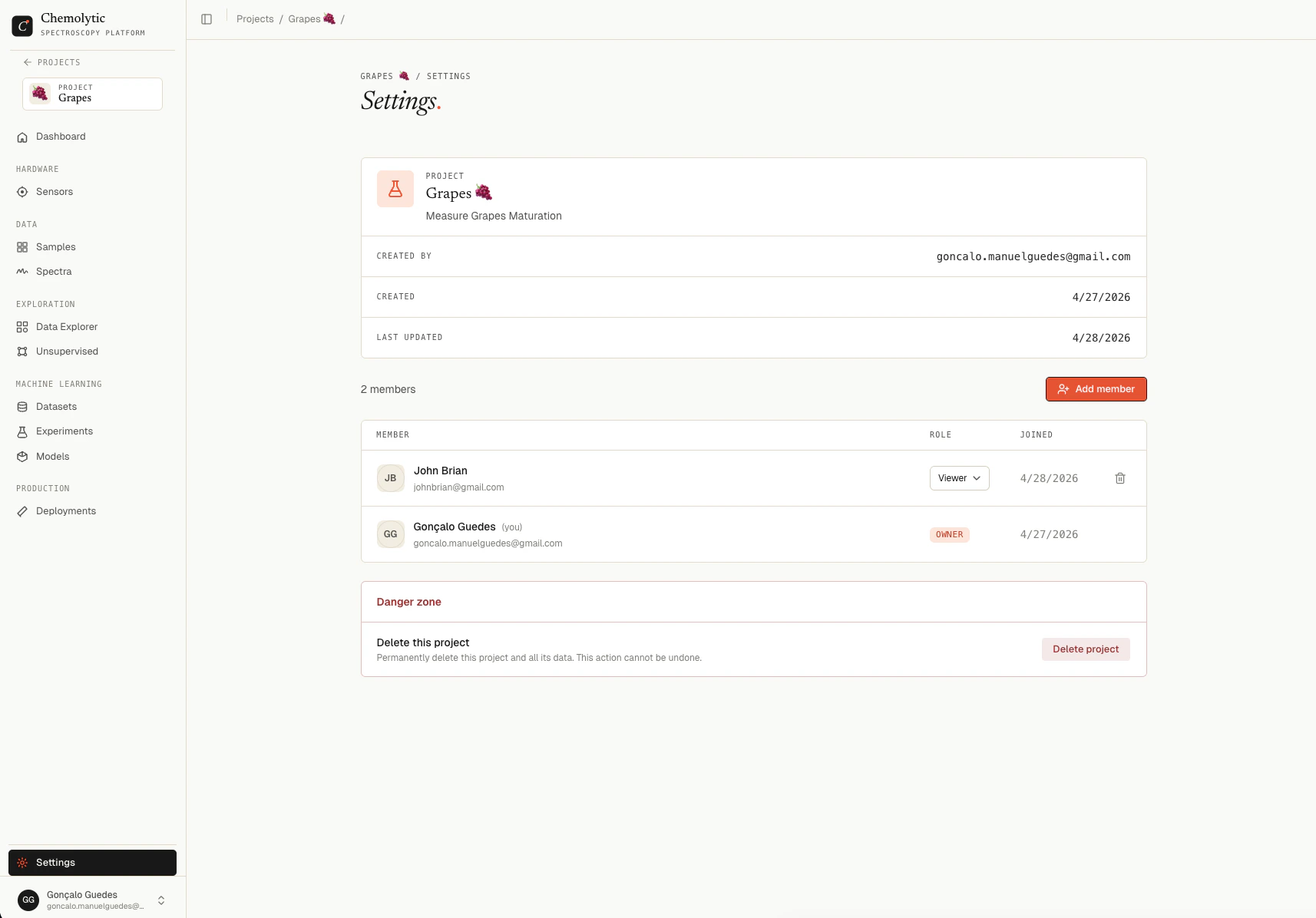 | Role | What they can do |
| --------------- | ------------------------------------------------------------------------- |
| **Owner** | Full control over the project, including deleting it and managing members |
| **Contributor** | Can create and edit data, run experiments, and deploy models |
| **Viewer** | Read-only access to all project resources |
### Adding a project member
1. Inside a project, go to **Settings** in the sidebar
2. Click the **Members** tab
3. Click **Add member**, select a user from your organization, and assign a role
Only organization members can be added to a project. Invite them to the organization first.
### Changing or removing a project member
Only the project **Owner** can change roles or remove members from a project.
| Role | What they can do |
| --------------- | ------------------------------------------------------------------------- |
| **Owner** | Full control over the project, including deleting it and managing members |
| **Contributor** | Can create and edit data, run experiments, and deploy models |
| **Viewer** | Read-only access to all project resources |
### Adding a project member
1. Inside a project, go to **Settings** in the sidebar
2. Click the **Members** tab
3. Click **Add member**, select a user from your organization, and assign a role
Only organization members can be added to a project. Invite them to the organization first.
### Changing or removing a project member
Only the project **Owner** can change roles or remove members from a project.